
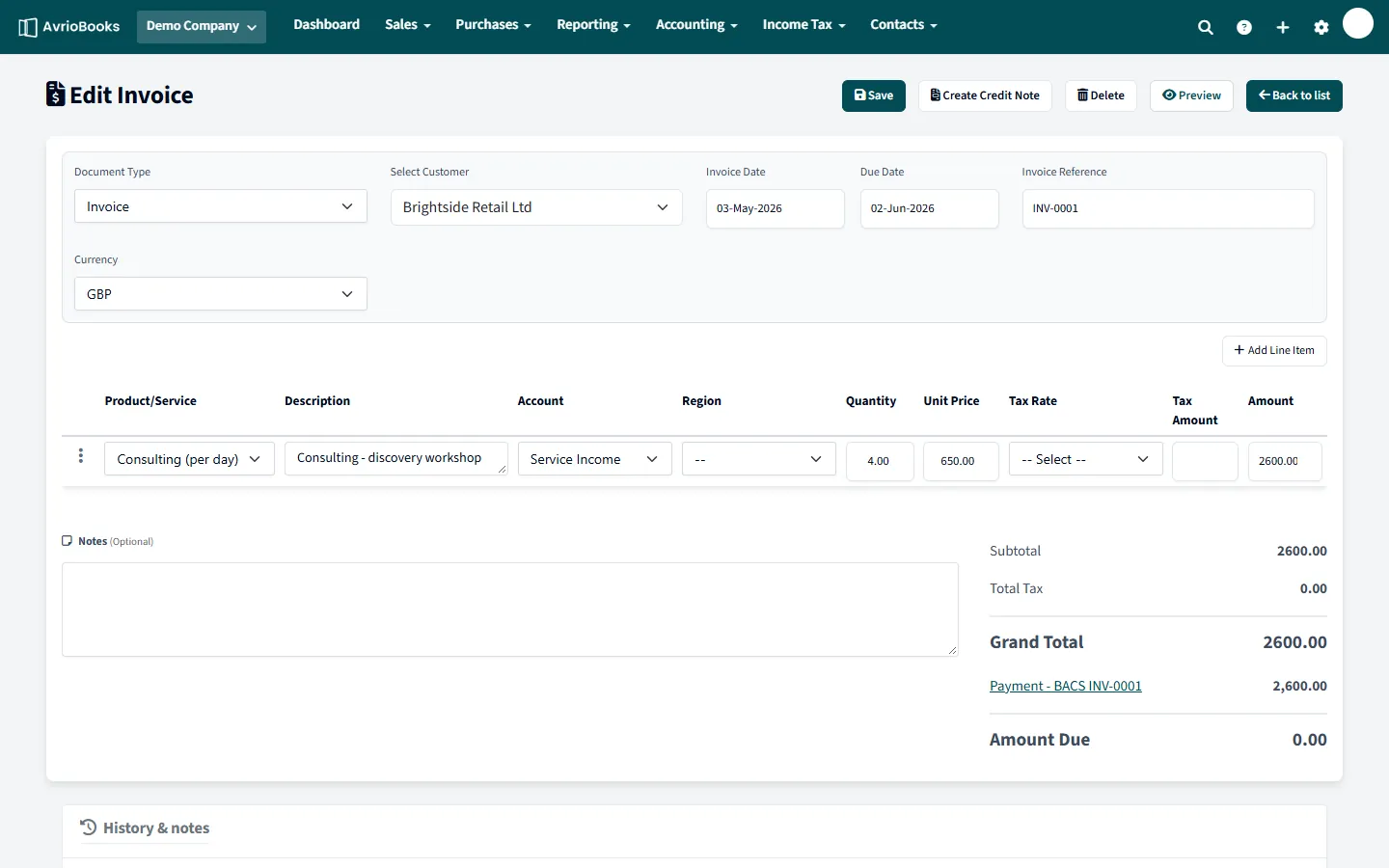
The amount is too high
“Payment ([amount]) exceeds the amount due ([amount]) on [number].” Enter no more than the balance due shown on the document. Check whether part of it has already been paid.
The currencies do not match
“A [currency] document can only be paid from a [currency] or [base currency] account.” Choose a bank account held in the document’s currency or in your base currency.
There is no exchange rate
“Set an exchange rate for [currency] on or before [date] (Accounting > Currencies).” Add a rate dated on or before the payment date and try again. See Work in multiple currencies.
The date is in a locked period
If the payment date is on or before your lock date it cannot be added. See I can’t add, edit or delete something.
The amount is zero or negative
Payments must be greater than zero. To reduce an invoice, issue a credit note instead.
A checklist before you save a payment
- Is the amount no more than the amount due shown on the document?
- Is the date after your lock date?
- Is the bank account in the same currency as the document, or in your base currency?
- For a foreign currency document, is there an exchange rate on or before the payment date?
Part payments and overpayments
A document can be paid in several instalments, each recorded separately, until the amount due reaches zero. AvrioBooks will not allow a payment larger than the amount due. If a customer overpays, record the exact amount due against the invoice and record the extra as a separate bank transaction, then deal with it according to your policy (refund or keep as credit).
A payment recorded in error
Open the account’s Account transactions tab, find the payment and delete it. The invoice goes back to showing the amount as due. If the payment has already been reconciled to a bank line, Undo the reconciliation first.
Related articles
For payments that arrive through your bank, the quickest route is to match them on the reconcile screen. See Reconcile bank transactions.