
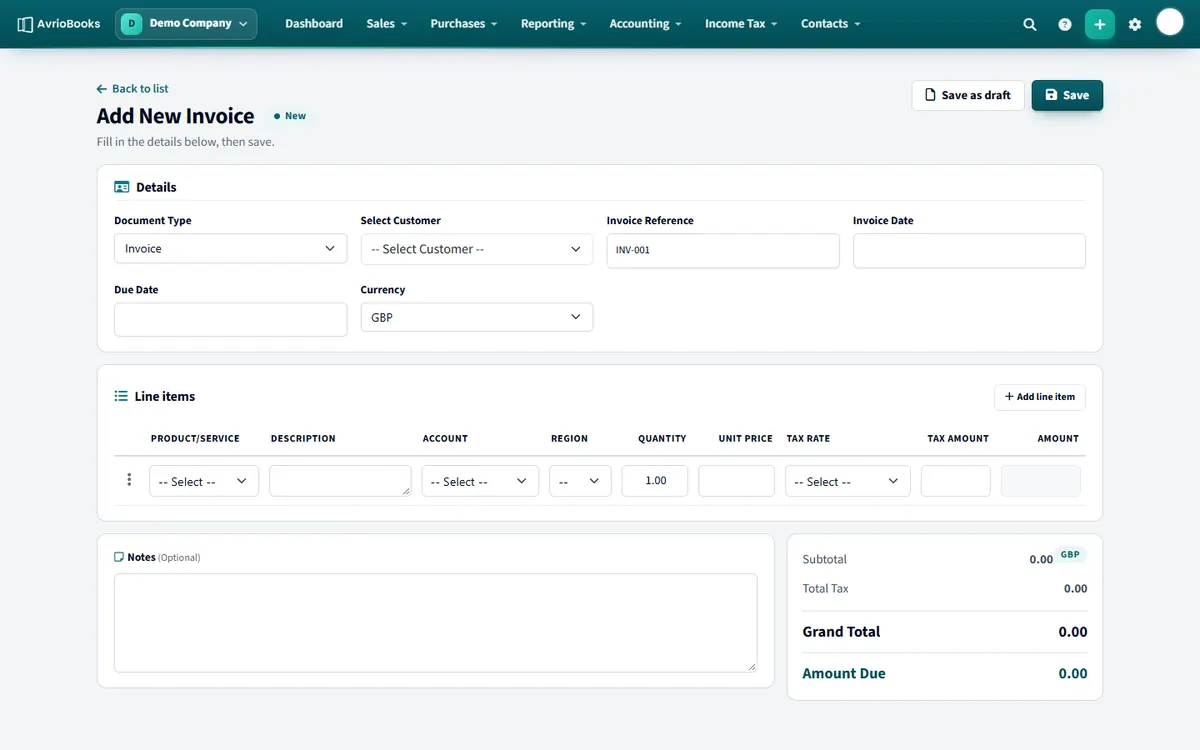
Create the invoice
- Select Sales > New invoice (or the + button, then Invoice).
- Check Document Type is Invoice and choose the customer.
- Enter an invoice number, the invoice date and the due date.
- If you are invoicing in a foreign currency, pick the currency. An exchange rate box appears so you can confirm the rate. See Multi-currency.
- Under Line items, choose a product or service (or type a description), the account, quantity, unit price and tax rate. Select Add line item for more lines. The tax amount and total update as you type.
- Add notes if you want the customer to see them, then select Save. Choose Save as draft to keep working on it without posting it to your accounts.
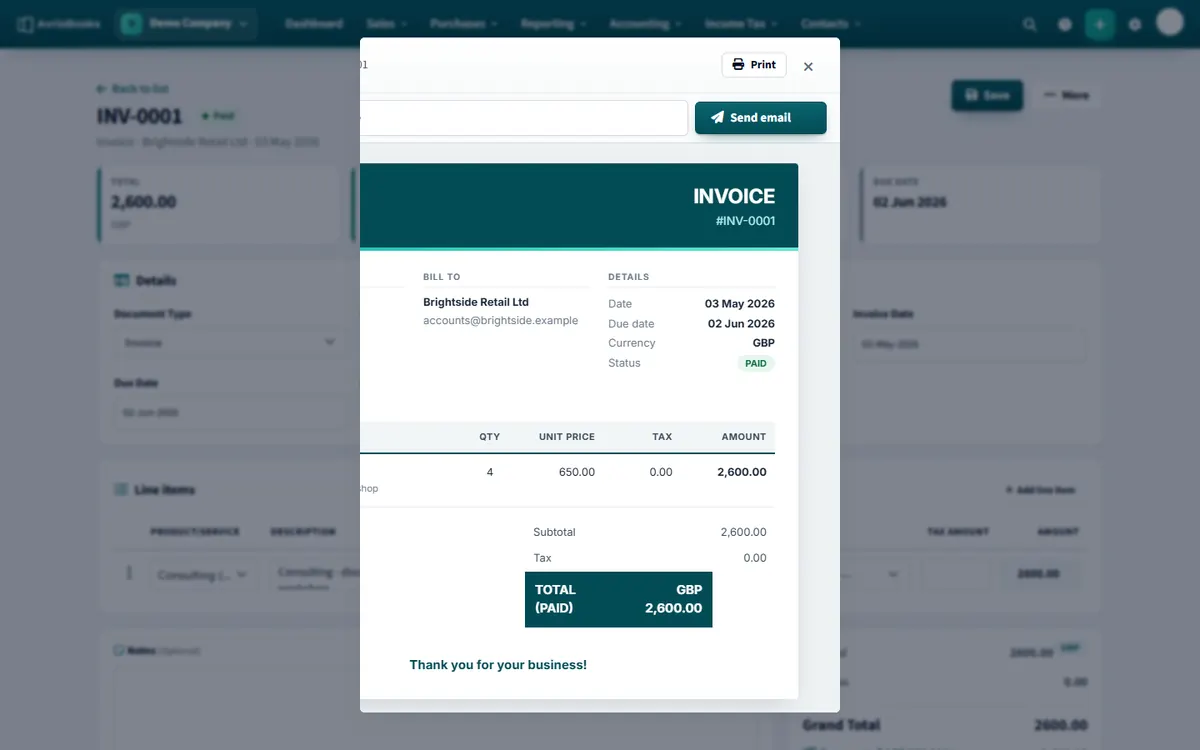
Preview and email it
- Open the invoice, select More > Preview.
- Enter your customer’s email address and select Send email.
AvrioBooks emails the invoice as a PDF from your business name, with your own email address as the reply-to. The email is recorded in the invoice history.
Record the payment
- Open the invoice and select Create payment.
- Enter the amount received, the date received and the bank account it was paid into. Add a reference or notes if you like.
- Select Add payment. The invoice shows how much has been paid and how much is still due, and becomes Paid when nothing is left.
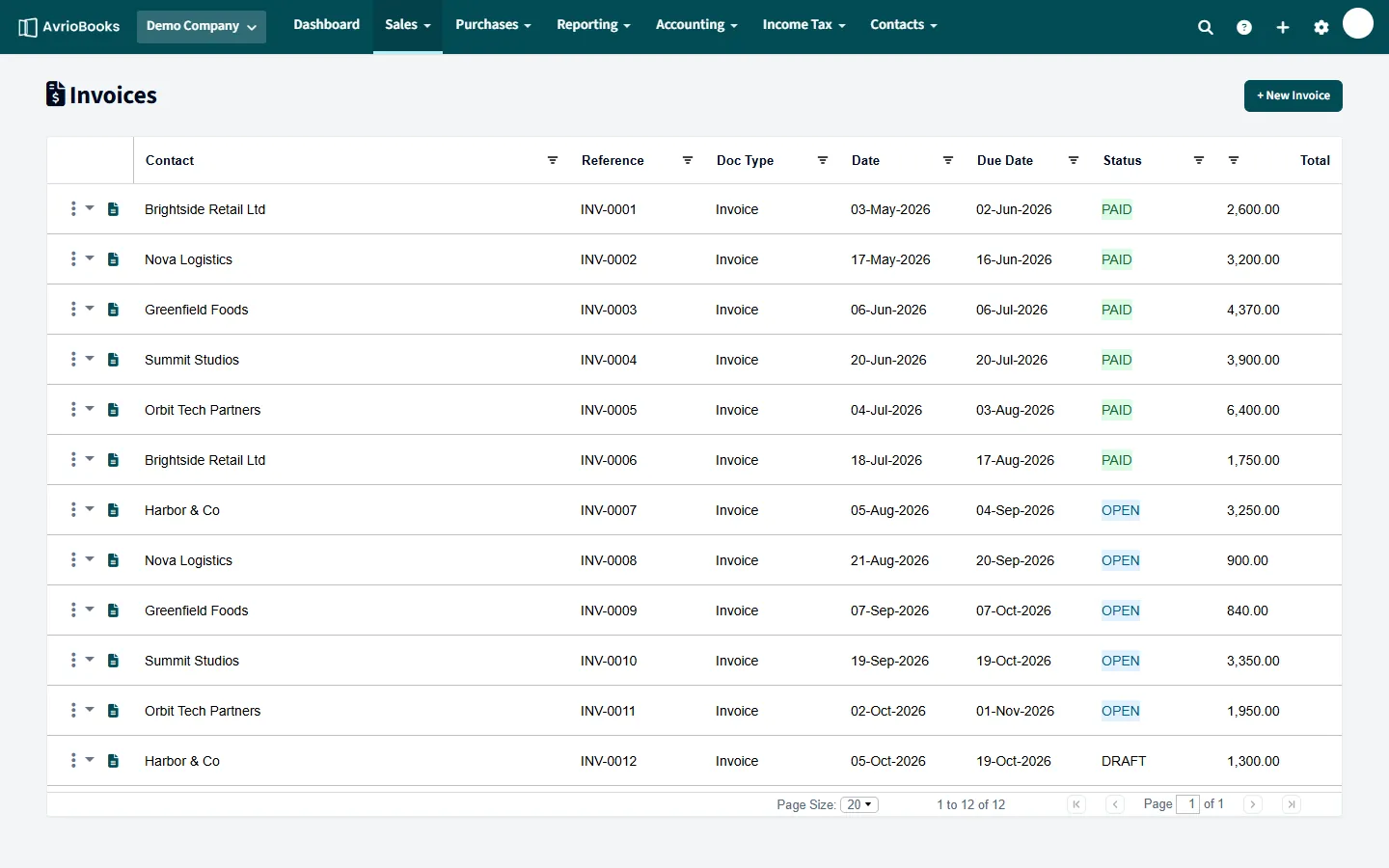
Invoice statuses
| Status | Meaning |
|---|---|
| Draft | Saved but not posted to your accounts |
| Awaiting approval | Submitted and waiting for an approver (when approvals are on) |
| Awaiting payment | Posted and unpaid |
| Overdue | Unpaid and past the due date |
| Paid | Fully paid |
Tip Use the status tabs at the top of the invoice list (All, Draft, Awaiting approval, Awaiting payment, Overdue, Paid) to find invoices quickly.
Frequently asked questions
Can I email an invoice from AvrioBooks?
Yes. Open the invoice, select More then Preview, enter your customer’s email address and select Send email. AvrioBooks sends the invoice as a PDF from your business name, with your own email address as the reply-to.
Can I save an invoice without posting it to my accounts?
Yes. Select Save as draft. A draft is not posted to your accounts until you save it as a normal invoice.
How do I record a payment against an invoice?
Open the invoice and select Create payment. Enter the amount received, the date and the bank account it was paid into, then select Add payment.
Still stuck? Our team is happy to help. Contact support or book a walkthrough.