
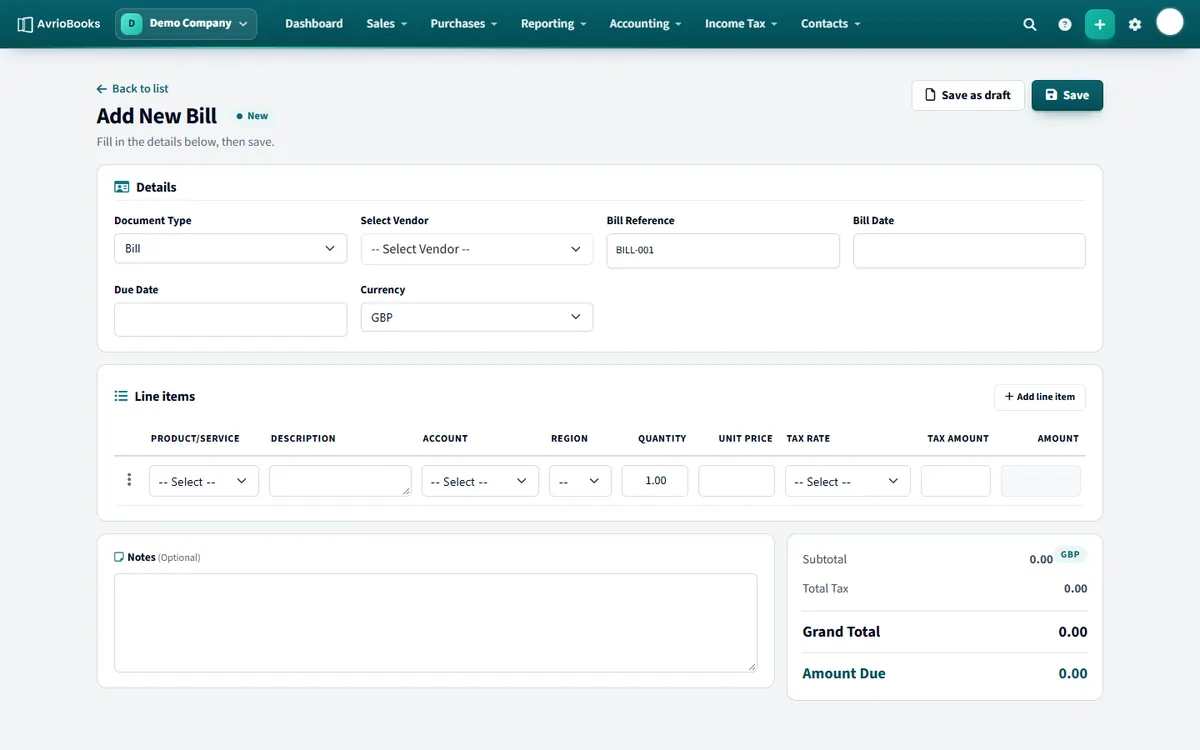
Enter a bill
- Select Purchases > New bill.
- Choose the supplier, enter the bill number, the bill date and the due date.
- Add line items with an account (the expense it belongs to), quantity, unit price and tax rate.
- Select Save, or Save as draft if you are not ready to post it.
Attach the supplier’s document
- Open the bill and select More > Attachments.
- Choose a PDF, PNG or JPG file. It is saved with the bill and you can preview it on screen.
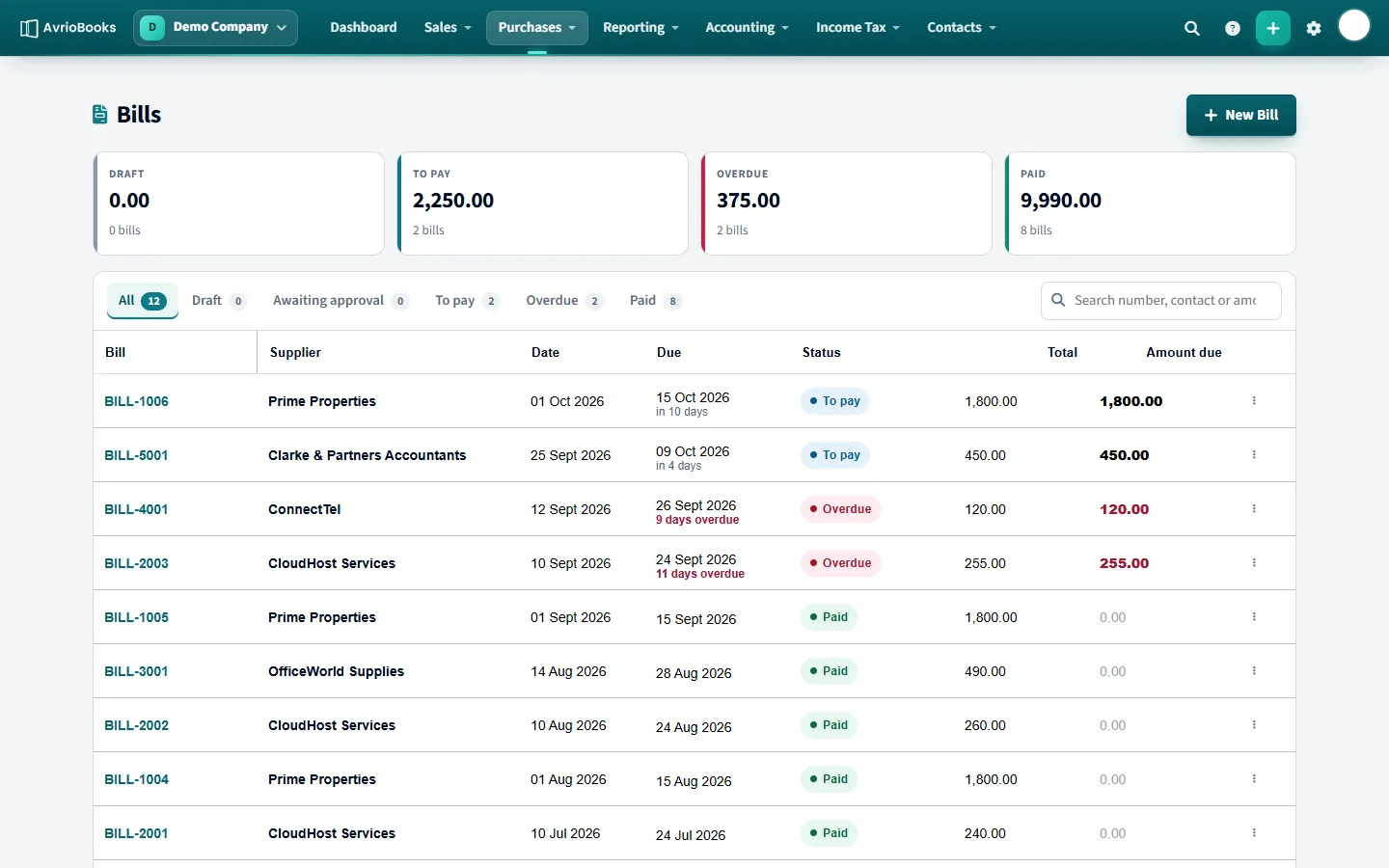
Pay the bill
- Open the bill and select Pay bill.
- Enter the amount paying, the payment date and the account it was paid from.
- Select Pay bill. The bill shows the amount paid and any balance still due.
If the bill is wrong
Use More > Create credit note to issue a credit note against it. See Credit notes.
Good to know If your business uses approvals, a bill may need to be approved before it is posted to your accounts. See Set up approvals.
Practical tips
- Use the supplier’s own invoice number as the bill reference. It makes duplicates easy to spot and bank reconciliation easier.
- Always attach the document so the evidence is stored with the record.
- Choose the right expense account on every line. A bill can be split across several accounts, for example part stationery and part software.
- Enter the due date from the supplier’s terms so the bill shows up correctly in Aged Payables.
Drafts and approvals
Use Save as draft for bills you are still checking; drafts are not posted to your accounts and show in Expenses to review on the dashboard. If your business uses approvals, you may need to submit the bill for approval before it is posted.
Bills in a foreign currency
Pick the currency on the bill and confirm the exchange rate. When you pay it, use a bank account in that currency or in your base currency. See Work in multiple currencies.
Part payments
You can pay a bill in instalments. Each payment reduces the amount due; the bill becomes Paid when nothing is left. A payment can never be more than the amount due.
More in Sales, Purchases & Approvals
Still stuck? Our team is happy to help. Contact support or book a walkthrough.