
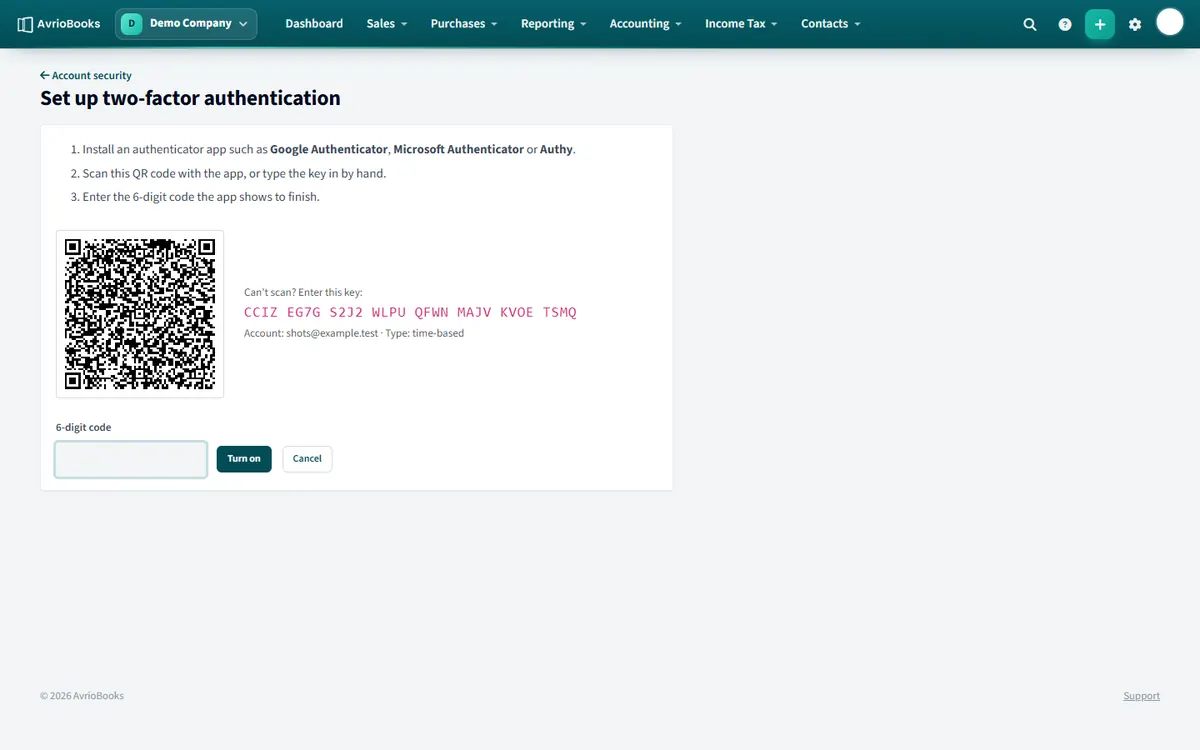
Set it up
- Open your profile menu and choose Account security.
- Under Two-factor authentication, select Set up two-factor authentication.
- Install an authenticator app such as Google Authenticator or Microsoft Authenticator on your phone.
- Scan the QR code, or type the key in by hand if you cannot scan.
- Enter the 6-digit code the app shows to finish.
- Save your backup codes somewhere safe. Each one can be used once if you lose your phone.
Manage it
- Get a new set of backup codes at any time. Your password is required.
- Turn two-factor authentication off from the same page.
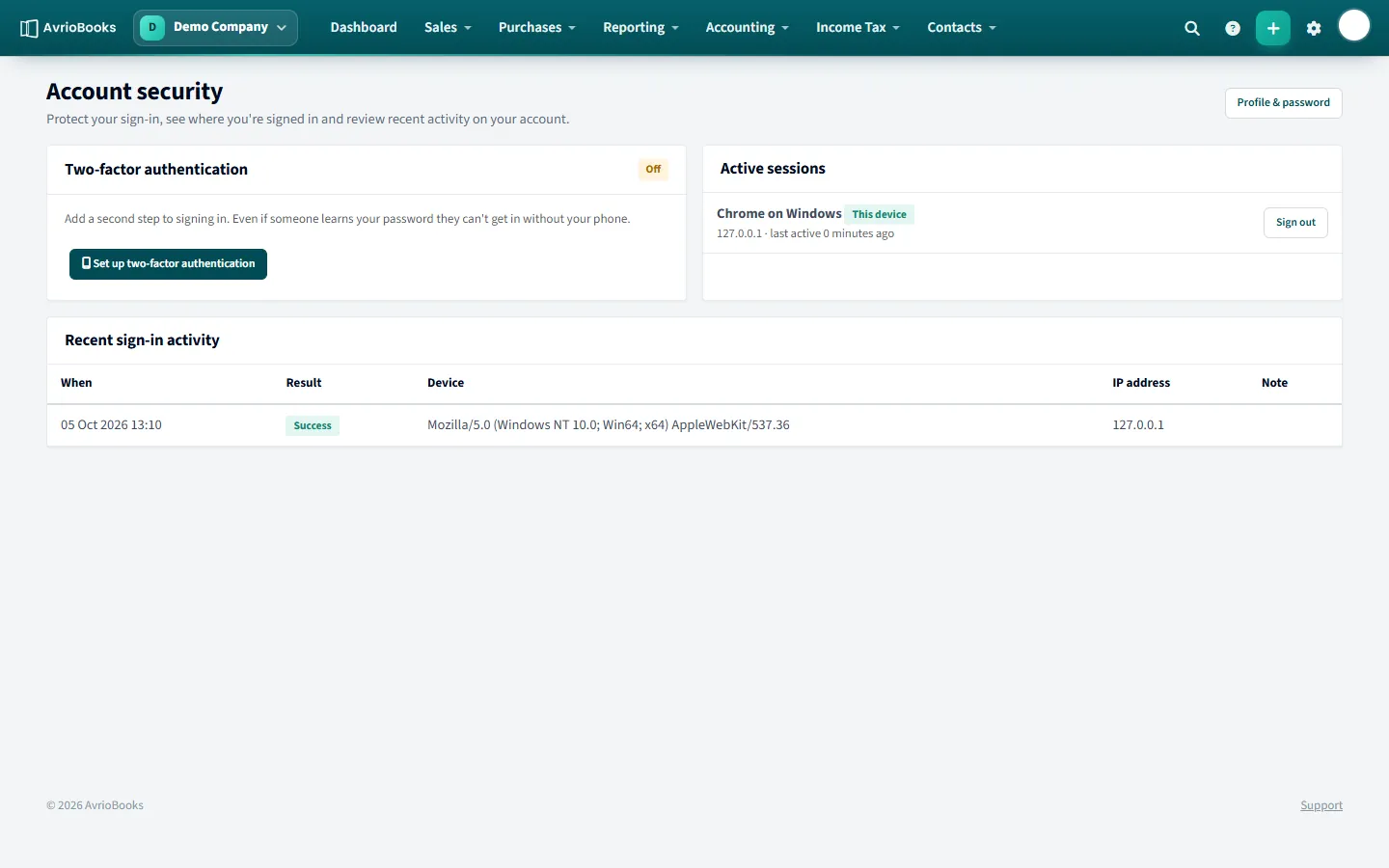
See where you are signed in
The same page lists your active sessions and your recent sign-in activity. Use Sign out all others if you spot something unfamiliar.
Require it for everyone
Administrators can make two-factor authentication mandatory. Open Users & roles, select Approvals & security, tick Require two-factor authentication, and optionally set an idle time after which people are signed out. The same page shows each person’s two-factor status.
Good practice
- Use an authenticator app on a phone that is protected by a screen lock.
- Save your backup codes in a password manager or a safe place. Treat them like passwords.
- Do not approve or enter codes you did not ask for.
- If you get a new phone, set up two-factor authentication again from Account security before you wipe the old one.
Why it matters for your business
Your books contain bank details, customer information and the ability to send invoices in your name. A stolen password alone is no longer enough to get in. Administrators can require it for everyone in the business so that no account is the weak link.
If something goes wrong
- Code not accepted: set your phone’s clock to automatic and try the newest code.
- Phone lost: use a backup code, then re-enrol your new phone.
- No codes left: contact support. See I can’t sign in.
Frequently asked questions
Which authenticator apps work with AvrioBooks?
Any authenticator app that scans a QR code, such as Google Authenticator or Microsoft Authenticator.
What if I lose my phone?
Sign in with one of your saved backup codes. Each one works once. Then set up two-factor authentication again on your new phone.
Can an administrator require two-factor authentication for everyone?
Yes. Open Users & roles, select Approvals & security and tick Require two-factor authentication.