
Tax Summary by Rate
Shows the sales and purchase tax totals for each tax rate over a period. Use it for a quick sense check: does the tax on your sales look right for the rates you charge?
Tax Audit Report
Lists every taxable transaction behind your return, grouped by rate, so you can trace any figure back to the invoice, bill or bank transaction it came from.
Run them
- Select Reporting > All reports.
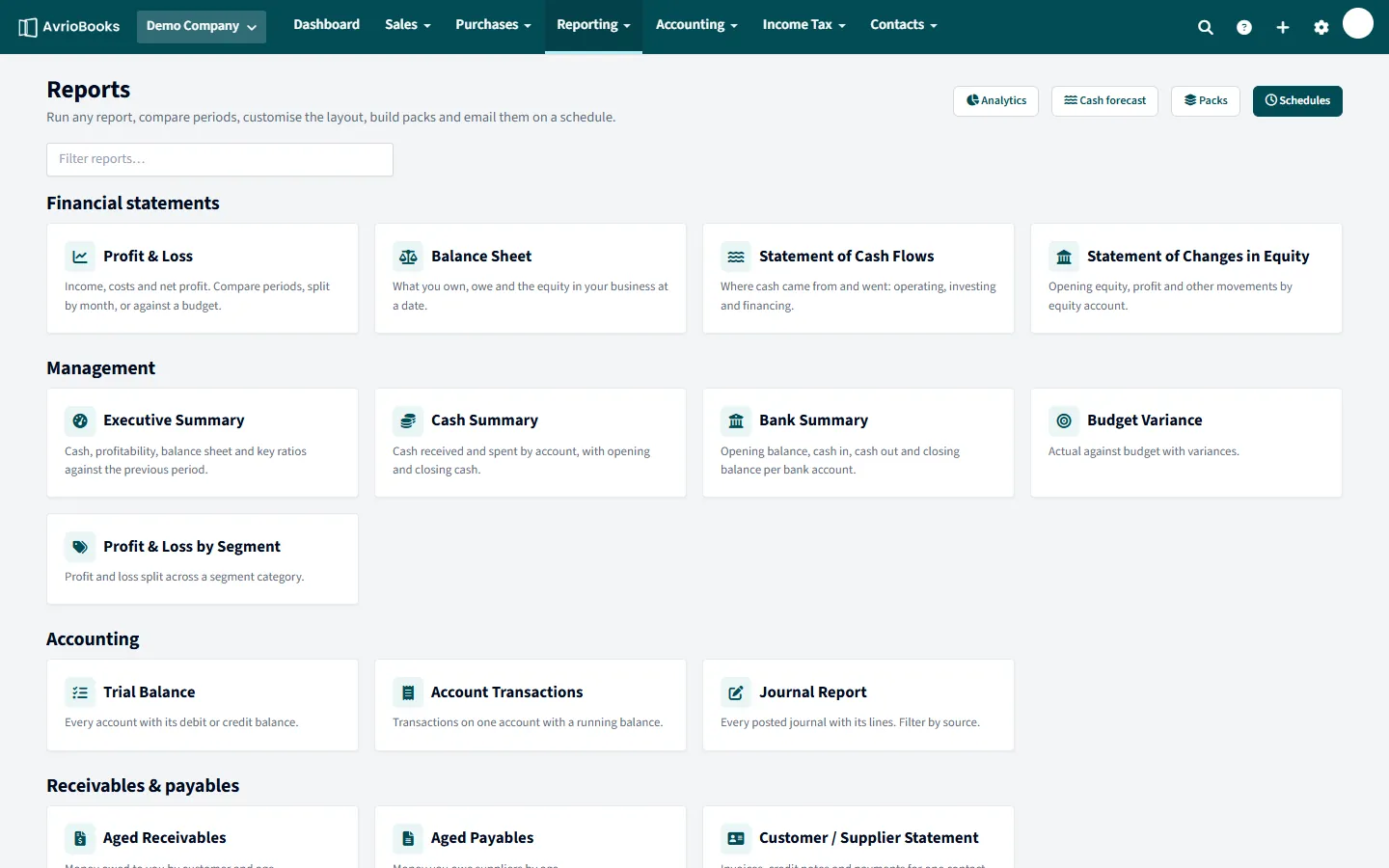
- Open Tax Summary by Rate or Tax Audit Report under Tax.
- Choose the same period as your return and select Update.
Use them with your return
Prepare the return under Accounting > VAT / GST returns, then compare its boxes with these reports. Once you have filed, lock the period. See Prepare a VAT or GST return and Opening balances and lock dates.
A simple check before you file
- Run Tax Summary by Rate for the return period and note the sales tax, purchase tax and net amounts for each rate.
- Prepare the return and compare Box 1 and Box 4 with the totals in the summary.
- If a figure looks wrong, run the Tax Audit Report and find the transaction behind it.
- Fix the source document, then recalculate the return.
Common reasons for differences
- A transaction dated just outside the period.
- A document still in Draft or awaiting approval, which is not yet posted to your accounts.
- The wrong tax rate on a line.
- A credit note, which reduces the sales or purchase figures.
After filing
Keep the Tax Audit Report with your filing records and set a lock date so the period cannot change. See Opening balances and lock dates.
More in Reports & Planning
Still stuck? Our team is happy to help. Contact support or book a walkthrough.