
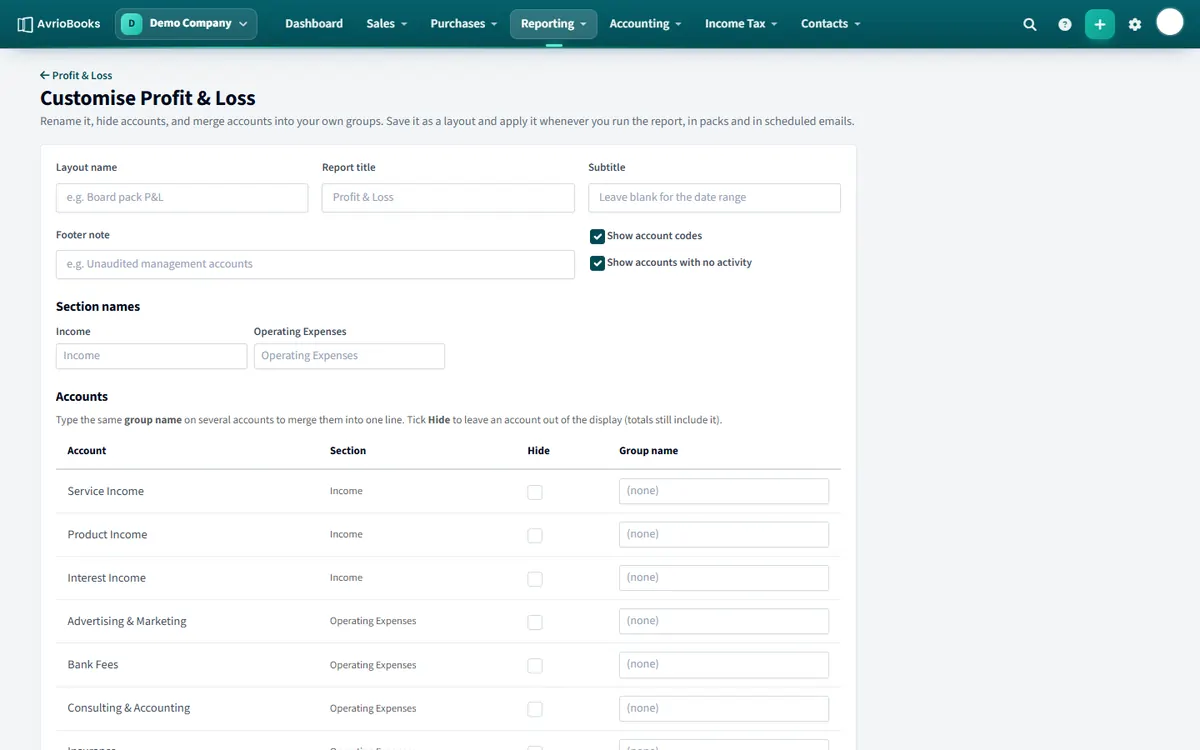
Create a layout
- Run the report you want to change and select Customise.
- Give the layout a name, for example “Board pack P&L”. You can also change the report title and subtitle.
- Rename section headings and individual lines.
- Tick Show account codes or Show accounts with no activity as you prefer.
- Select several accounts to merge them into one line, or tick the hide option to leave an account out of the display. Totals still include hidden accounts.
- Save the layout.
Use a layout
Choose the layout when you run the report, when you add the report to a pack, and when you schedule it by email.
When to use a layout
Layouts are for the version of a report that goes to someone else, such as your board, your bank or an investor. They let you present a tidy summary while the detailed accounts stay in your books.
A typical example
Your profit and loss has six separate office-related accounts: stationery, postage, cleaning, tea and coffee, printer ink and sundries. In a layout, select those six and merge them into one line called Office costs. The report now shows one line with the combined figure, and the total expenses and net profit are unchanged.
Important to know
- Hiding an account only changes the display. Totals still include it, so the numbers always add up.
- You can rename sections, lines and the report title or subtitle.
- Layouts belong to a report, so create one for each report you want to present differently.
Use it everywhere
Choose the layout when you run the report, when you add the report to a pack and when you schedule it by email. See Report packs and scheduled emails.