
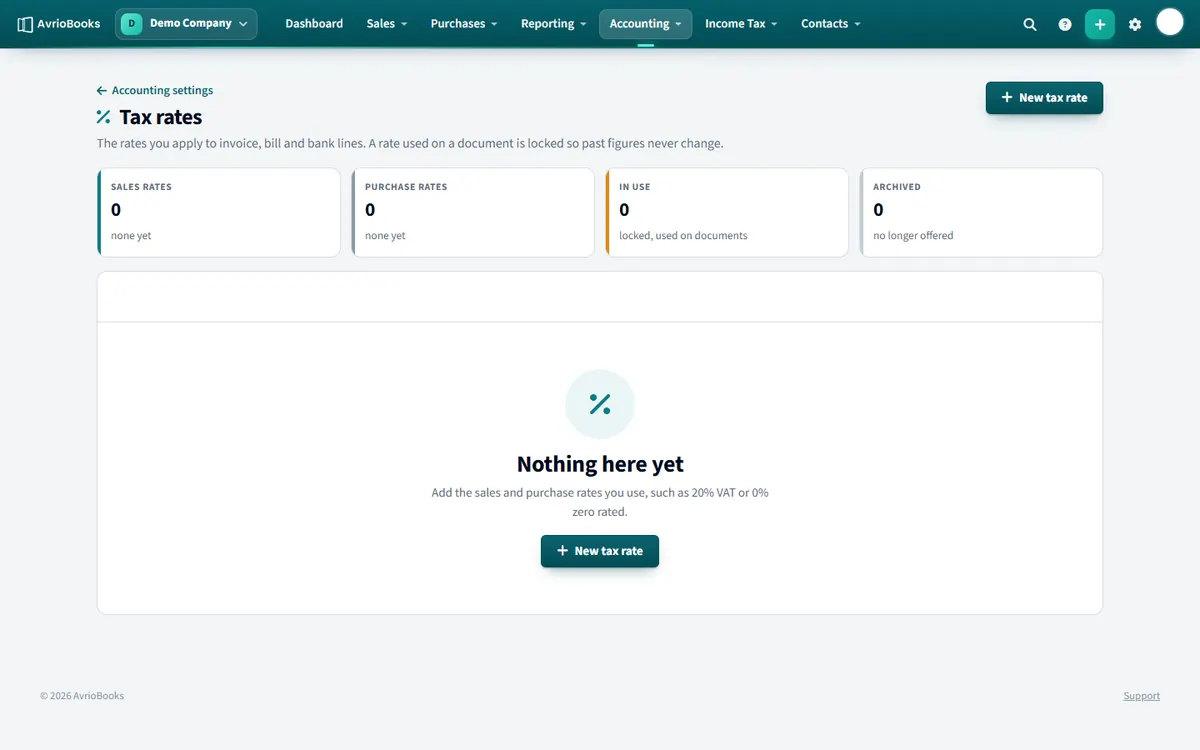
View your tax rates
Select Accounting > Tax rates. Cards show your sales rates, purchase rates, rates in use and archived rates. A rate that is used on a document is locked so past figures never change.
Create a tax rate
- Select New tax rate.
- Name the rate and choose whether it is for sales (income) or purchases (expenses).
- Under Tax components, add one or more components with their percentage. The effective rate is the sum, for example 5% + 2.5% = 7.5%.
- Select Save tax rate.
Set defaults
Open a contact to choose default sales and purchase accounts and tax rates, so lines are filled in automatically.
Examples
| Rate | Components | Effective rate |
|---|---|---|
| Standard rate | 20% | 20% |
| Reduced rate | 5% | 5% |
| Zero rated | 0% | 0% |
| Regional tax | 5% + 2.5% | 7.5% |
Sales and purchase rates
Create separate rates for sales and purchases where you need them. A purchase rate lets you reclaim tax on costs; a sales rate collects tax on income. Having both makes your VAT or GST return accurate.
Changing a rate
Once a rate has been used on a document it cannot be changed, so past returns and reports never move. If the government changes a rate, create a new rate with the new percentage and start using it on new documents. You can archive the old one once you no longer need it.
Defaults
Set default sales and purchase tax rates on each contact, so lines pick the right rate automatically. You can still change the rate on any line.