
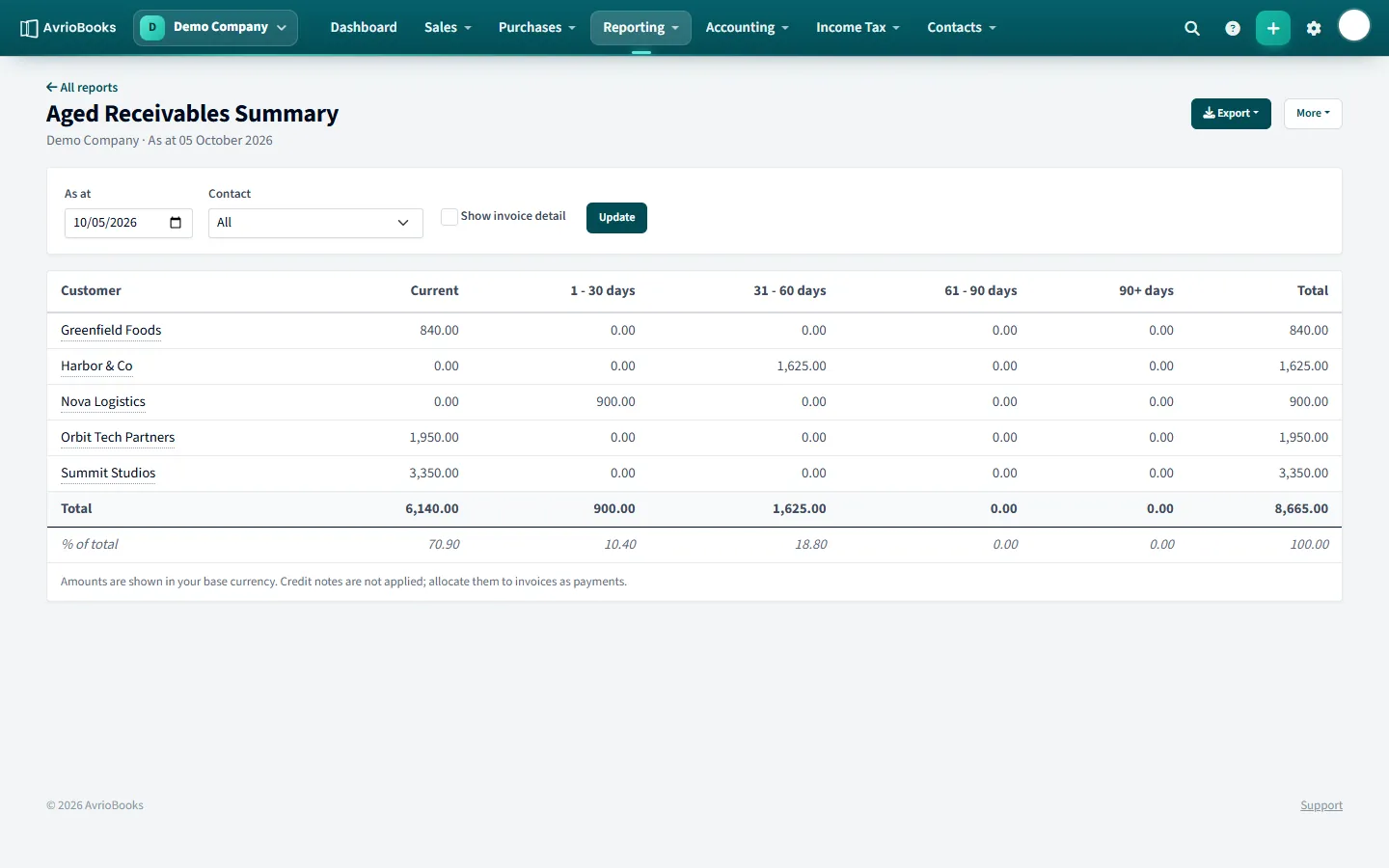
Run the report
- Select Reporting > Aged Receivables (money owed to you) or Aged Payables (money you owe).
- Choose the as at date.
- Optionally choose a single contact.
- Tick Show invoice detail to expand each total into the individual invoices or bills.
- Select Update.
Reading it
Each row is a customer or supplier. The columns split what is outstanding by age:
| Column | Meaning |
|---|---|
| Current | Not yet due |
| 1–30 days | Up to 30 days overdue |
| 31–60 days | 31 to 60 days overdue |
| 61–90 days | 61 to 90 days overdue |
| 90+ days | More than 90 days overdue |
| Total | Everything outstanding |
A % of total row shows how much of the total sits in each age band.
Export or send it
Use Export for PDF, Excel or CSV. For a statement to send to one customer, use the Customer / Supplier Statement report or the Statement tab on the contact. See Contact profiles.
The same ageing totals appear as charts on your dashboard under Invoices owed to you and Bills you need to pay.
Use it to chase payments
- Run Aged Receivables with Show invoice detail ticked.
- Start with the 90+ days column, then 61–90. These are the invoices most at risk of not being paid.
- Open the customer from the report, or use their Statement tab, and email the statement. See Contact profiles, notes, groups and statements.
- Leave a pinned note on the contact recording who you spoke to and what was promised.
Use it to plan your own payments
Run Aged Payables before you pay suppliers. Anything in the Current column is not yet due, so you can hold the cash until the due date. Overdue columns show where you are late and may be charged penalties or lose goodwill.
How the age is worked out
An item is aged from its due date, not its invoice date. An invoice dated 1 March with 30-day terms is Current until 31 March, then moves into 1–30 days. Make sure due dates are entered correctly on documents or the ageing will look better or worse than reality.
Credit notes
Amounts are shown in your base currency, and credit notes are not applied automatically in this report. Allocate a credit note to the invoice it relates to as a payment so it reduces what the customer owes.
Good habits
- Run the report weekly and compare the total with the dashboard cards, which use the same figures.
- Change the as at date to look back, for example to see the position at last month end.
- Save a layout or include the report in a monthly pack so the numbers reach the right people automatically.