
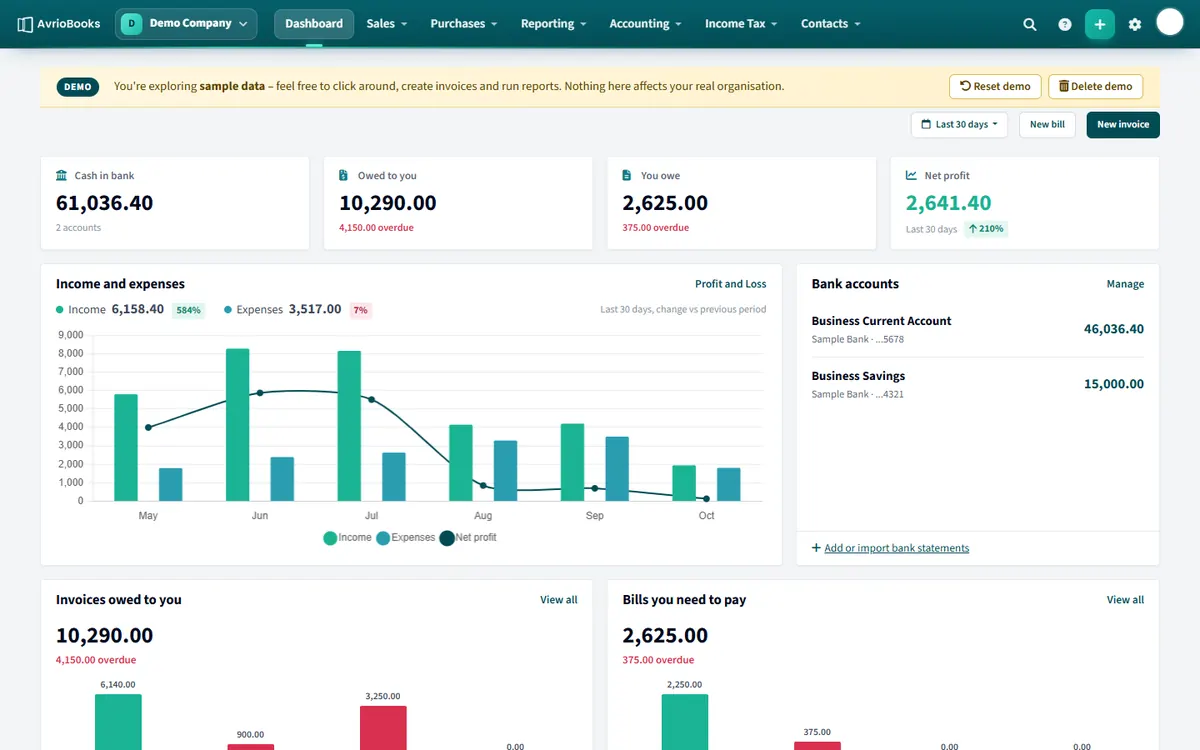
Switch
- Select the business name at the top left of the screen.
- Choose another business from the list. You go straight to its dashboard.
Add a business
In the same list choose Add a new organisation to start the four-step setup. See Create your business. How many you can add depends on your plan: Starter 1, Standard 3 and Premium 10. The demo company does not count.
Edit a business
Choose Organisation profile from the same list to change its name, address and other details. The base currency cannot be changed after the business is created.
Good to know
- Each business has its own chart of accounts, contacts, reports and team.
- Billing and trials are per business.
- Your role can differ from one business to the next.
Tips for accountants and multi-business owners
- Keep each client or company in its own business so books, users and billing stay separate.
- Give each client the role that fits them, for example Read only for a client who just wants to look.
- Name businesses clearly so the switcher list is easy to scan.
What stays separate
Every business has its own chart of accounts, contacts, bank accounts, reports, team and subscription. Changing something in one business never affects another.
Limits
| Plan | Businesses |
|---|---|
| Starter | 1 |
| Standard | 3 |
| Premium | 10 |
If you reach the limit, AvrioBooks tells you how many your plan allows and invites you to upgrade. See Plan limits and locked features.
More in Plans, Team, Security & Tax
Still stuck? Our team is happy to help. Contact support or book a walkthrough.