
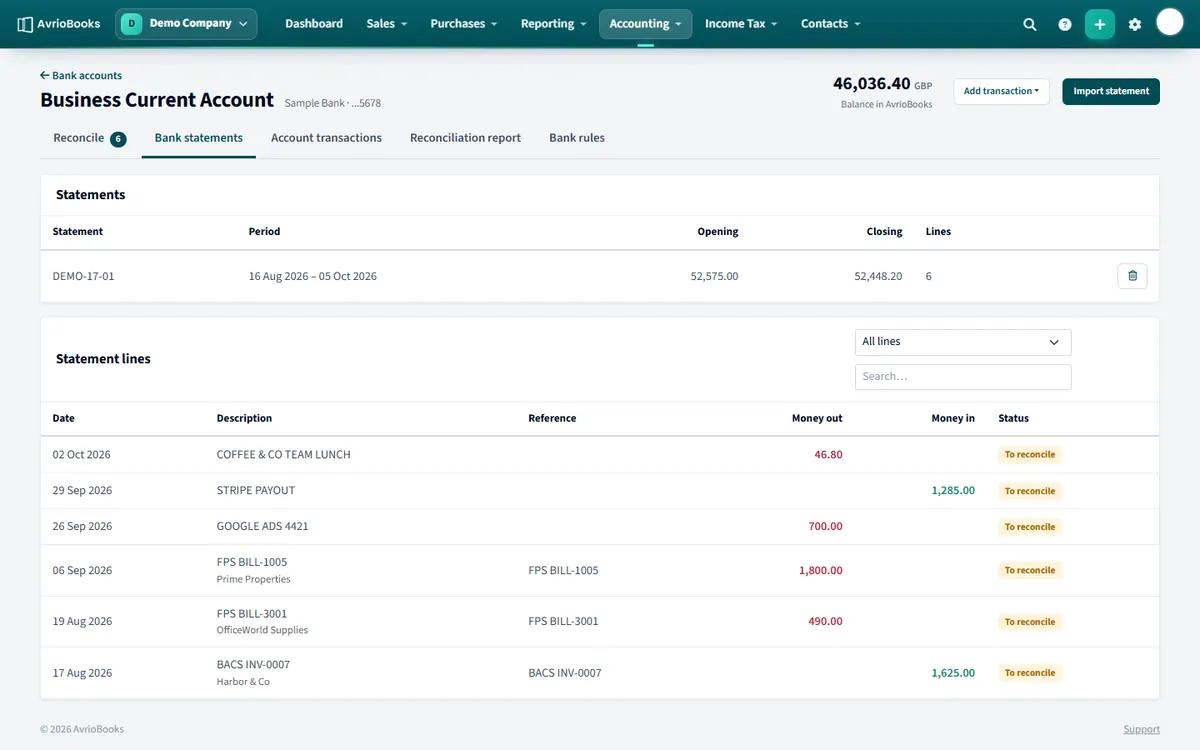
See your statements
Select Accounting > Bank accounts, open the account and choose Bank statements. The Statements table lists each one with its period and opening and closing balances. Below it, Statement lines shows every line with a status of To reconcile or Reconciled.
Filter by Unreconciled or Reconciled, or use the search box to find a line by description or reference.
Delete a statement
- In the Statements table, use the delete icon on the statement.
- Confirm.
If any of its lines are reconciled you will see “This statement has reconciled lines. Undo the reconciliation first.”. Open the Reconcile screen, go to the Reconciled tab, use Undo on those lines, then delete the statement.
Delete a single line
On the reconcile screen each unreconciled line has a bin icon. A reconciled line must be undone first.
Statements and statement lines
A statement is one imported file, with its period and opening and closing balances. Statement lines are the individual transactions inside it. Statements are the audit trail of what you imported; lines are what you reconcile.
Finding a line
- Use the All lines, Unreconciled and Reconciled filter to focus on what is left to do.
- Search by description or reference to find a specific payment.
- Page through long lists with the previous and next controls at the bottom.
When to delete a statement
Only when you imported the wrong file or the wrong account. Remember that importing the same file twice is safe because duplicates are skipped, so you do not need to delete a statement to “clean up”. A statement with reconciled lines cannot be deleted until you undo those reconciliations.
Good practice
- Import statements regularly, at least monthly, in date order.
- Check the statement’s closing balance against your bank’s each time.
- See My bank balance doesn’t match my statement if the balances disagree.