
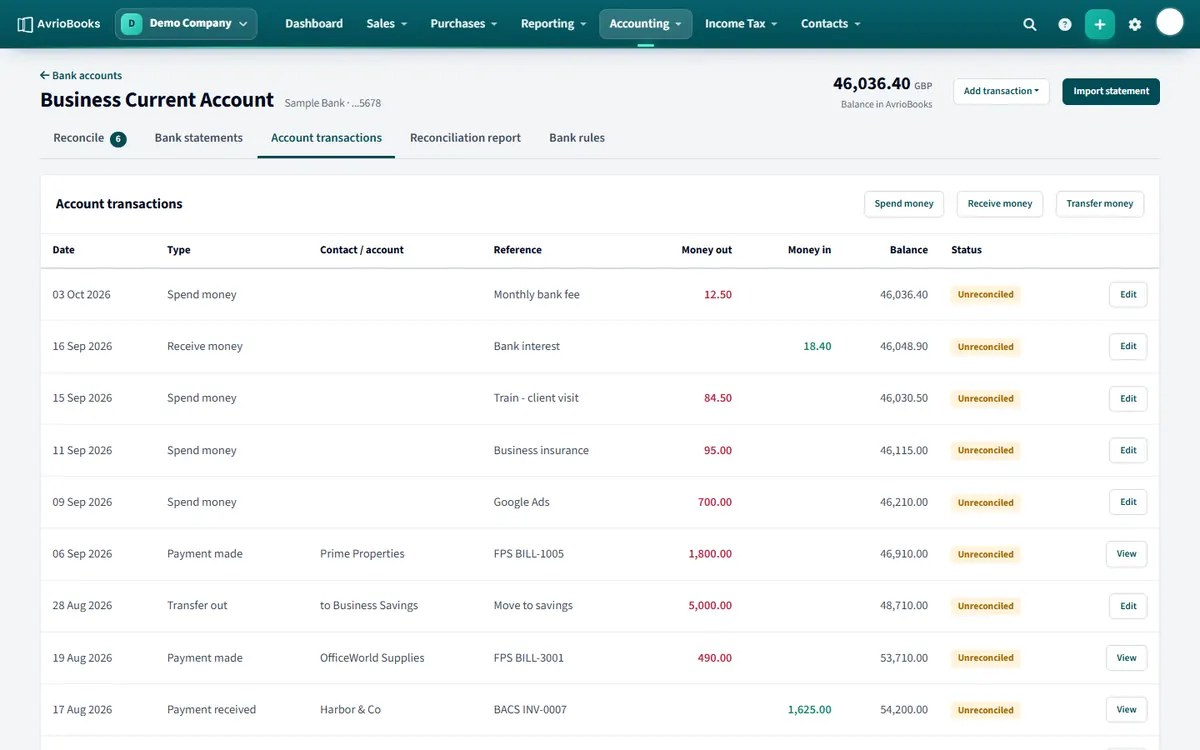
Add a transaction
- Select Accounting > Bank accounts, open the account and choose the Account transactions tab (or use + > Bank transaction).
- Select Spend money or Receive money.
- Choose a contact if relevant, add a reference, and tick Amounts are tax inclusive if that is how you entered the figures.
- Add one or more lines with an account, tax rate, description and amount, then save.
Transfer between accounts
Use Transfer money on the same tab. Choose the other account and the amount. If the accounts use different currencies you also enter the amount received.
Delete a transaction
Open the transaction and use the delete option. Transactions in a locked period cannot be deleted.
Which one should I use?
| Situation | Use |
|---|---|
| Bank fees or card payments with no bill | Spend money |
| Interest, grants or other income with no invoice | Receive money |
| Moving money between your own accounts | Transfer money |
| Paying a supplier bill | Pay the bill from the bill itself |
| A customer paying an invoice | Create payment from the invoice |
Examples
- Bank charge: Spend money coded to Bank fees. Add your bank as the contact so it is not flagged under Expenses to review on the dashboard.
- Owner’s top-up: Receive money coded to owner’s capital.
- Savings transfer: Transfer money from the current account to savings; each side appears in its own account.
Tips
- If you import statements and reconcile, you will often create these transactions from the reconcile screen instead of entering them by hand.
- Use consistent references so transactions are easy to find later.
- Amounts can be entered tax inclusive, with the tax rate chosen on each line.
More in Banking
Still stuck? Our team is happy to help. Contact support or book a walkthrough.