
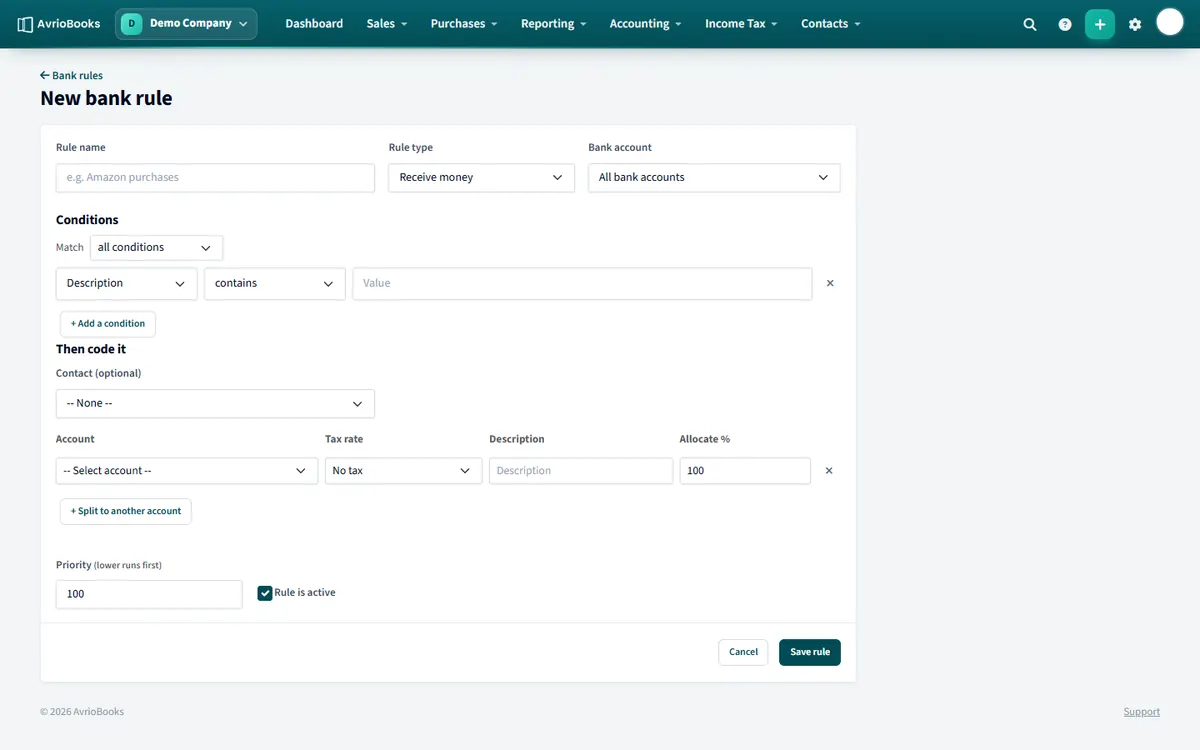
Create a rule
- Select Accounting > Bank rules, then New bank rule (you can also start one from the reconcile screen).
- Enter a rule name such as “Amazon purchases”.
- Choose the rule type: Receive money, Spend money or Transfer money.
- Choose a bank account, or leave it as All bank accounts.
- Add one or more conditions. Pick a field (description, reference, payee or amount) and an operator, then enter a value. Choose whether all or any of the conditions must match.
- Under Then code it, choose an optional contact and the account, tax rate and description. Use Split to another account to divide the amount by percentage. For a transfer rule, choose the account to transfer with instead.
- Set the priority (lower runs first), leave Rule is active ticked and select Save rule.
Operators
For text fields you can use contains, equals, starts with and ends with. For amounts you can use =, >, >=, < and <=.
You can enable, disable, edit or delete rules from the Bank rules list at any time.
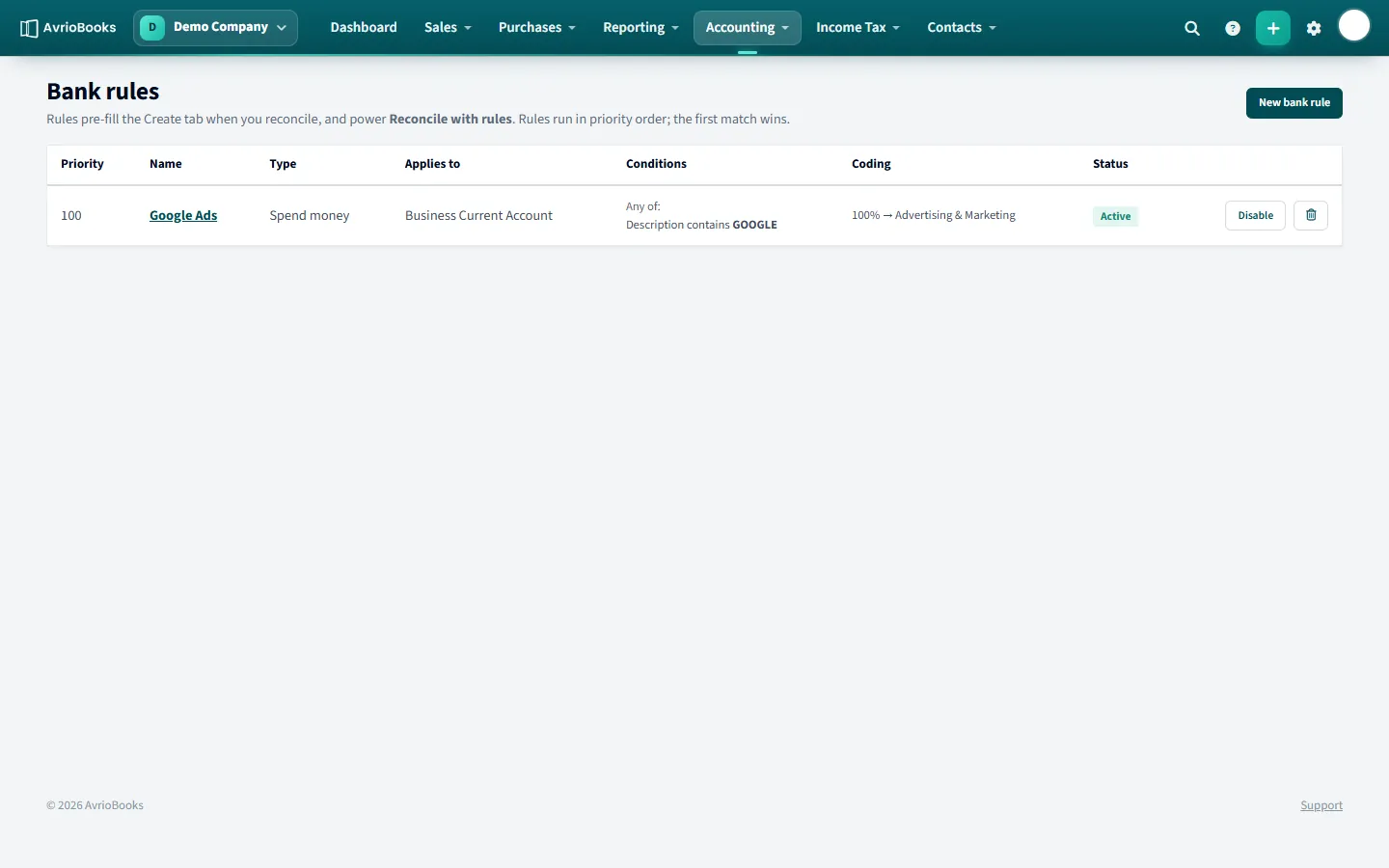
Rule ideas that save the most time
| Repeating transaction | Rule |
|---|---|
| Monthly software subscription | Spend money, description contains the supplier name, code to Software |
| Card processor payouts | Receive money, payee equals the processor, code to Sales or a clearing account |
| Bank fees | Spend money, description contains “FEE”, code to Bank fees |
| Savings sweep | Transfer money, description contains “SAVINGS”, transfer with the savings account |
| Rent paid to a landlord | Spend money, payee equals the landlord, amount = the rent |
How to keep rules reliable
- Prefer payee or distinctive words in the description over generic words that appear on many lines.
- Combine a text condition with an amount condition when the same supplier sends different kinds of payments.
- Use priority to put narrow rules before broad ones. Lower numbers run first.
- Review the Bank rules list from time to time and switch off rules that no longer apply.
When a rule does not match
If a statement line you expected to match shows no rule, compare its exact description with the rule’s condition. Bank descriptions often contain extra codes, so contains is usually safer than equals. Lines that no rule matches are reconciled by hand from the Match or Create tabs.
Frequently asked questions
Can a bank rule split a transaction across accounts?
Yes. Use Split to another account and give each allocation a percentage. The percentages must add up to 100%.
How are bank rules applied?
When you select Reconcile with rules. A matching rule is also shown on the statement line, with its coding pre-filled on the Create tab. Rules with a lower priority number run first.