
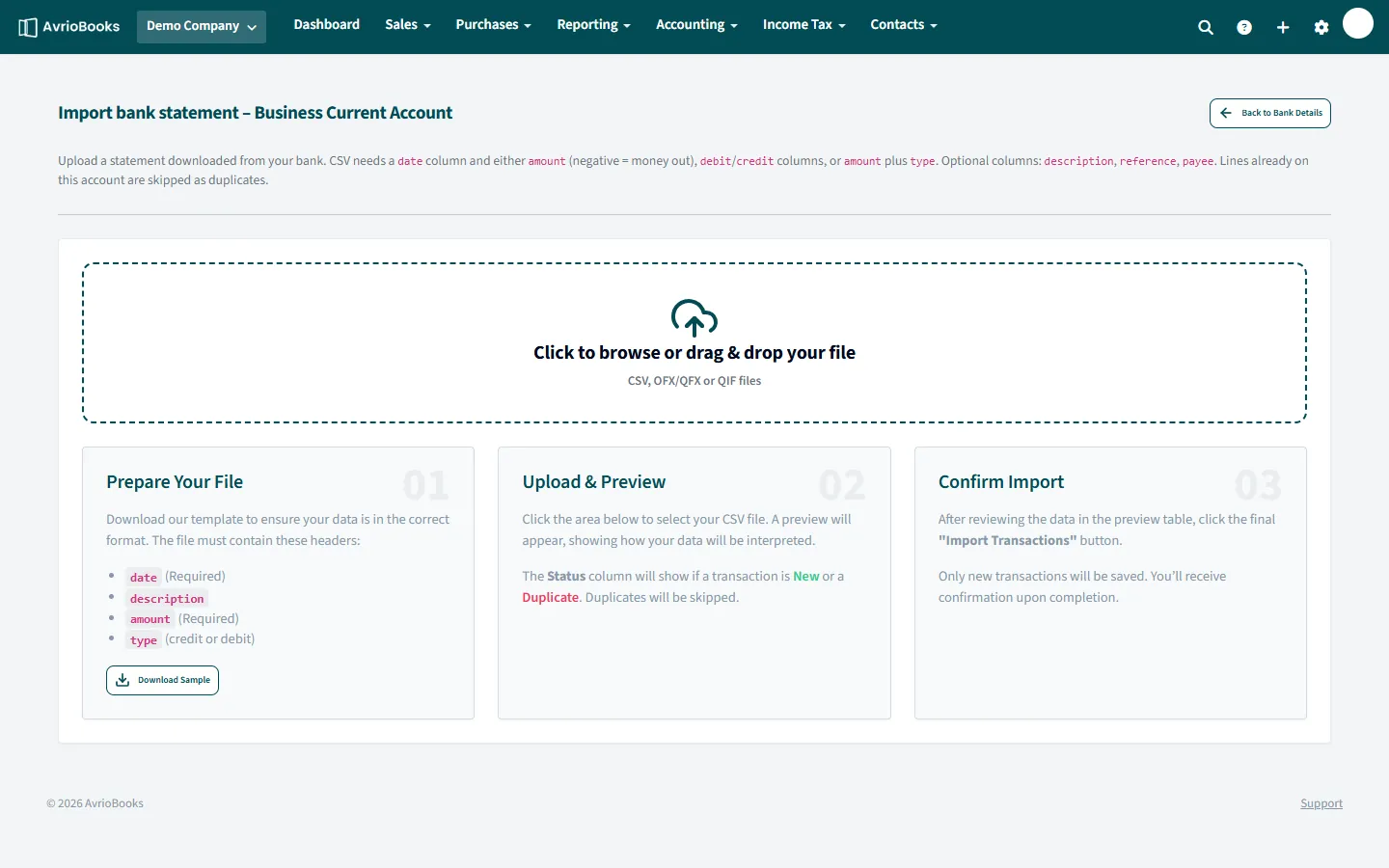
Import a statement
- Select Accounting > Bank accounts and open the account.
- Select Import statement.
- Click to browse, or drag and drop your file. Accepted formats are CSV, OFX, QFX and QIF.
- Check the preview. It lists the lines that will be added and marks duplicates, which are skipped.
- Confirm the import. The new lines appear under Reconcile, ready to match.
CSV format
The first row must be column headers. Download the sample file from the import page if you need a template.
| Column | Required | Notes |
|---|---|---|
| date | Yes | For example 2026-03-14 or 14/03/2026 |
| amount | Yes* | Negative means money out. *Or use separate debit and credit columns, or amount with a type of debit or credit |
| description | No | |
| reference | No | |
| payee | No |
OFX, QFX and QIF files are the formats most banks offer for download and need no column set-up at all.
Preparing a CSV in a spreadsheet
- Download the sample file from the import page and open it in Excel or Google Sheets.
- Paste your bank’s rows under the sample headings, or rename your own headings to match
date,description,amountand so on. - Check that every row has a date and an amount, and delete bank summary lines or blank rows.
- Save as CSV (comma separated) and upload it.
Tips
- If your bank offers OFX, QFX or QIF, use those. They need no column set-up or preparation.
- Import in date order and avoid gaps; a missing week is a common reason balances do not agree.
- Download statements for the same period for every account and import them together.
- A reference or payee column, when your bank provides one, makes bank rules and matching more accurate.
After you import
Go straight to the reconcile screen. Select Reconcile with rules for lines with one exact match, then work through the rest. See Reconcile bank transactions. If anything looks wrong you can remove the statement. See View and delete bank statements.
Frequently asked questions
Which bank statement file formats does AvrioBooks accept?
CSV, OFX, QFX and QIF files. OFX, QFX and QIF files need no column set-up.
What happens if I import the same statement twice?
Lines already on the account are skipped as duplicates, so importing twice is safe. The preview shows which lines are new and which are duplicates before anything is saved.
Can AvrioBooks connect directly to my bank?
Not yet. You download a statement from your online banking and import it, then reconcile with suggested matches and bank rules.