
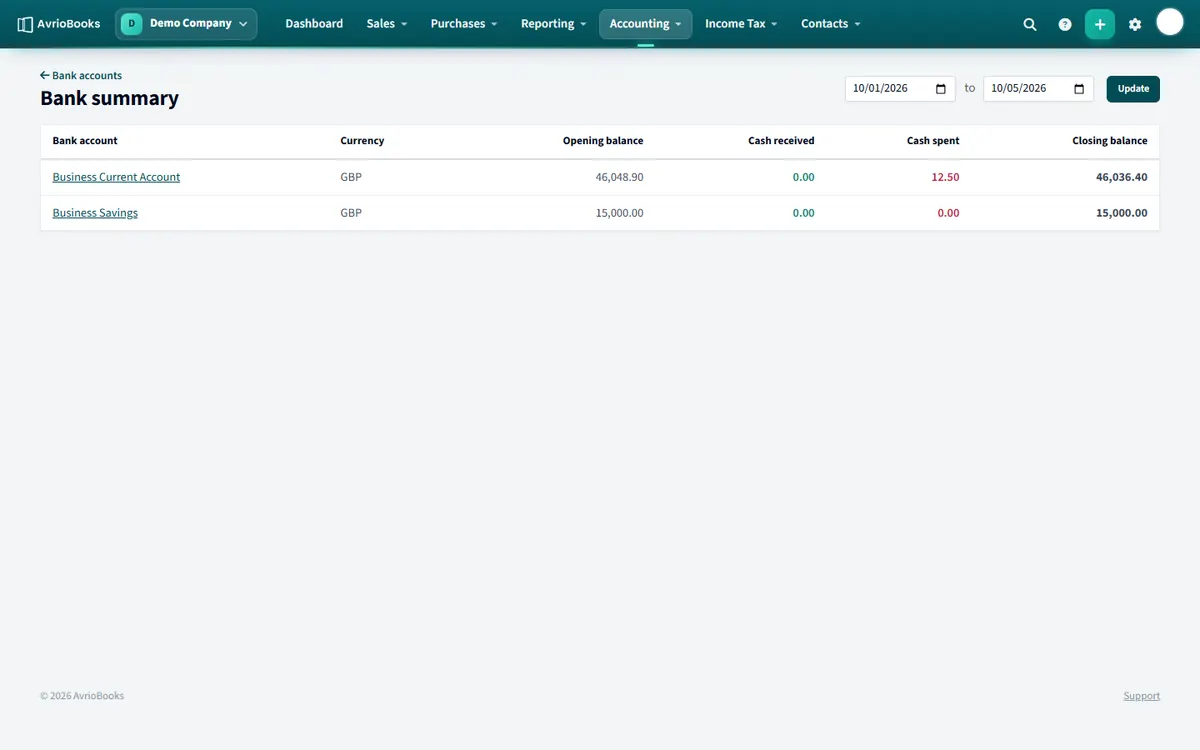
Bank summary
Select Accounting > Bank summary (or Reporting > All reports > Bank Summary). Choose a date range and select Update. For every bank account you see its currency, opening balance, cash received, cash spent and closing balance. Select an account name to go to it.
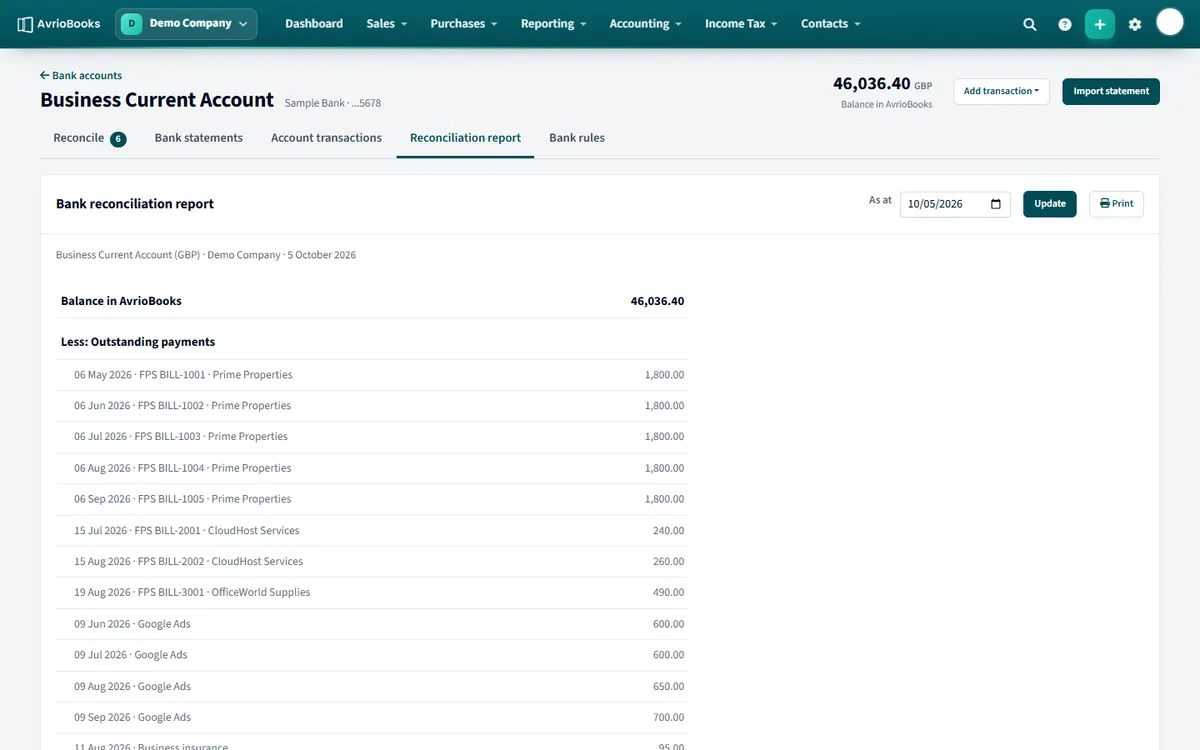
Reconciliation report
Open an account and choose the Reconciliation report tab. Pick the as at date and select Update.
- It starts with the balance in AvrioBooks.
- It lists outstanding payments and receipts that are in your books but not yet on a statement.
- It ends with the balance that should match your bank statement.
Use Print to keep a copy with your month-end papers.
Cash summary
The Cash Summary report shows cash received and spent by account, with opening and closing cash. Run it from Reporting > All reports.
When to run them
- Bank summary at month end, to see movement across every account in one table and spot an account that did not change when you expected it to.
- Reconciliation report after you have finished reconciling an account, to keep a record that it agreed on that date.
- Both before you lock a period, so you know the cash side is complete. See Opening balances and lock dates.
A simple month-end banking checklist
- Import the latest statement for every account.
- Reconcile every line until Items to reconcile is zero.
- Run the Reconciliation report for the month-end date and check it agrees with the bank’s closing balance.
- Run the Bank summary for the month and sanity-check cash received and spent.
- Print or save the reports with your month-end papers, then set the lock date.
Reading the bank summary
Each account shows its opening balance, cash received, cash spent and closing balance for the dates you choose. The closing balance is the balance in AvrioBooks, which is the figure you compare with your statement. Accounts in a foreign currency show their own currency.