
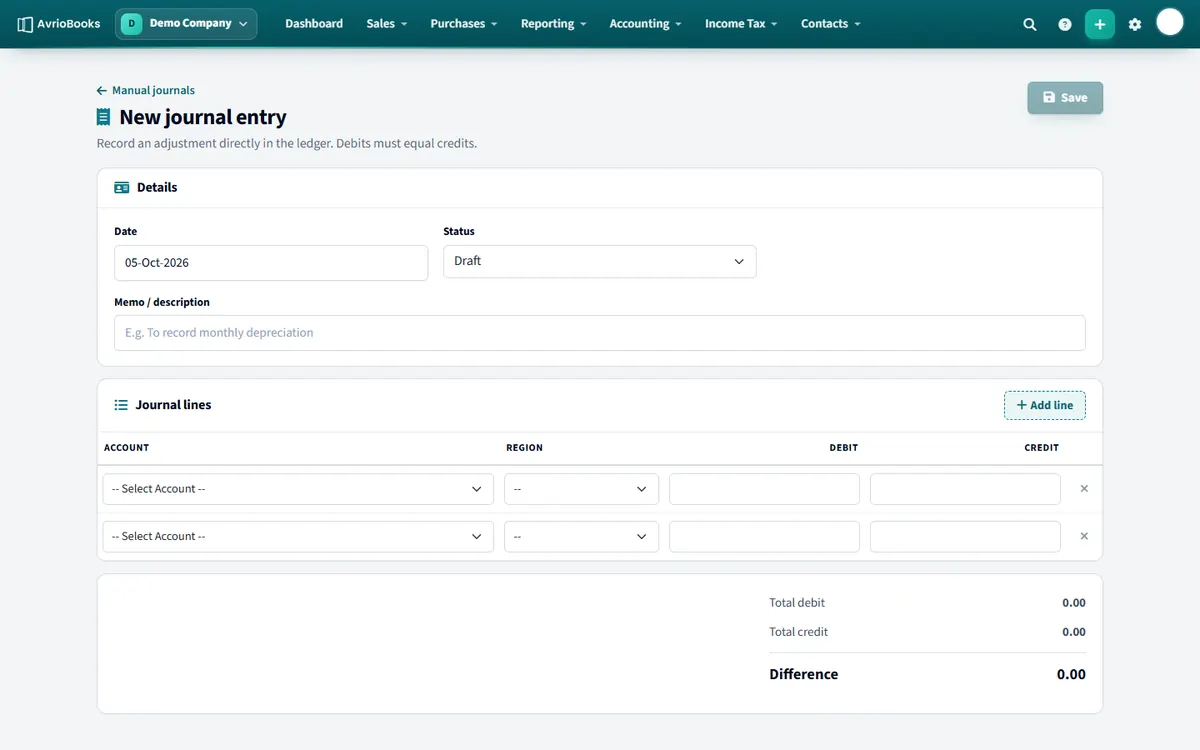
Post a journal
- Select Accounting > Manual journals, then New journal entry (or + > Manual journal).
- Enter the date and a memo that explains the entry.
- Add lines, choosing an account and entering a debit or a credit for each. The totals must balance.
- Save the entry.
Reverse a journal
Open a posted journal and select Reverse. AvrioBooks creates a new posted entry dated today with every line swapped, memoed “Reversal of” the original. Only posted entries can be reversed, and the current period must be open.
Use the Journal Report to see every posted journal with its lines.
When to use a manual journal
- Accruals: recording an expense for work received but not yet billed.
- Prepayments: spreading a cost paid in advance over the months it covers.
- Corrections: moving an amount between accounts after it was coded wrongly.
- Year-end adjustments agreed with your accountant.
A worked example
You pay 1,200 for a year of insurance in January. Rather than expensing it all at once, post a journal each month: debit Insurance expense 100 and credit Prepayments 100. Each journal balances, because the total debits equal the total credits. Over twelve months the prepayment falls to zero and the expense is spread evenly.
Tips
- Write a clear memo. It is what your accountant sees in the Journal Report.
- Do not use journals for things AvrioBooks has a feature for, such as depreciation. See Register fixed assets and run depreciation.
- If you post a journal in error, use Reverse rather than deleting it, so there is a visible trail.
- Entries dated in a locked period cannot be added.
More in Contacts, Products & Setup
Still stuck? Our team is happy to help. Contact support or book a walkthrough.