
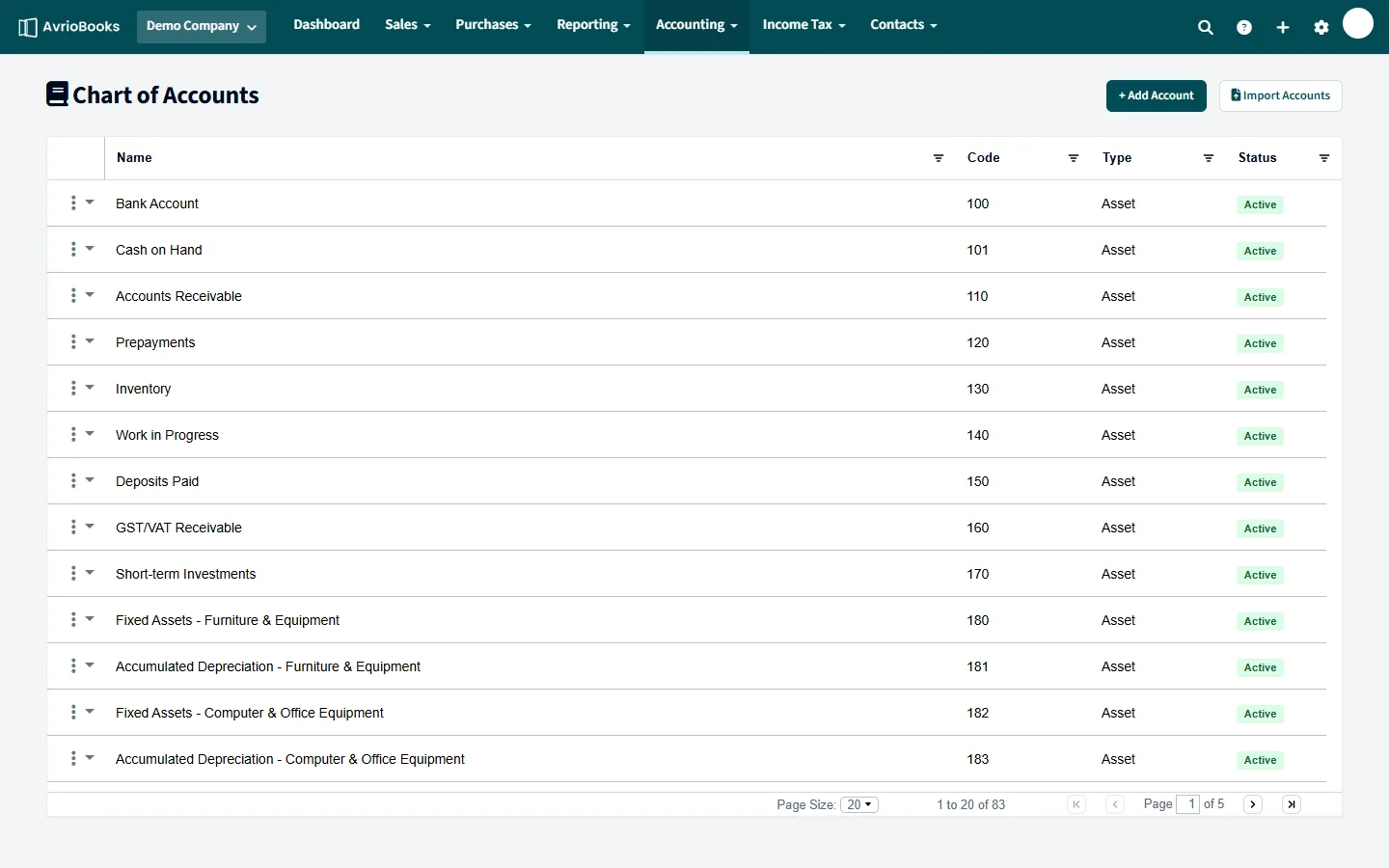
View and search
Select Accounting > Chart of accounts. Summary cards show your totals by type. Filter by Assets, Liabilities, Equity, Revenue, Expenses or Inactive, or search by code, name or description.
Add an account
- Select Add account.
- Enter a name, a code, the account type and a description.
- Select Save account.
Import accounts
Use Import accounts with a CSV containing name, code, account_type and description. You see a preview before saving.
Deactivate an account
Use the account’s menu to make it inactive. Inactive accounts stay in your history but no longer appear in new transactions.
How accounts are organised
| Type | What it holds | Examples |
|---|---|---|
| Asset | What you own or are owed | Bank, accounts receivable, equipment |
| Liability | What you owe | Accounts payable, tax liability, loans |
| Equity | The owners’ stake | Owner’s capital, retained earnings |
| Revenue | Income | Sales, service income, interest |
| Expense | Costs | Rent, wages, software, advertising |
Tips for a tidy chart
- Use a consistent code scheme, for example assets in the 100s and revenue in the 200s, so accounts sort sensibly.
- Prefer fewer, clearer accounts. Many tiny accounts make reports hard to read; you can always analyse further with segments.
- Write a short description so colleagues know what belongs in an account.
Why you deactivate rather than delete
An account that has transactions is part of your history. Making it inactive hides it from new transactions while every past report stays exactly as it was. If you try to reuse a name or code that an active account already has, AvrioBooks tells you it already exists.
Migrating from another system
Import your existing list with a CSV using the columns name, code, account_type and description. Check the preview, then confirm. Then enter your balances on the Opening balances page.