
Open a profile
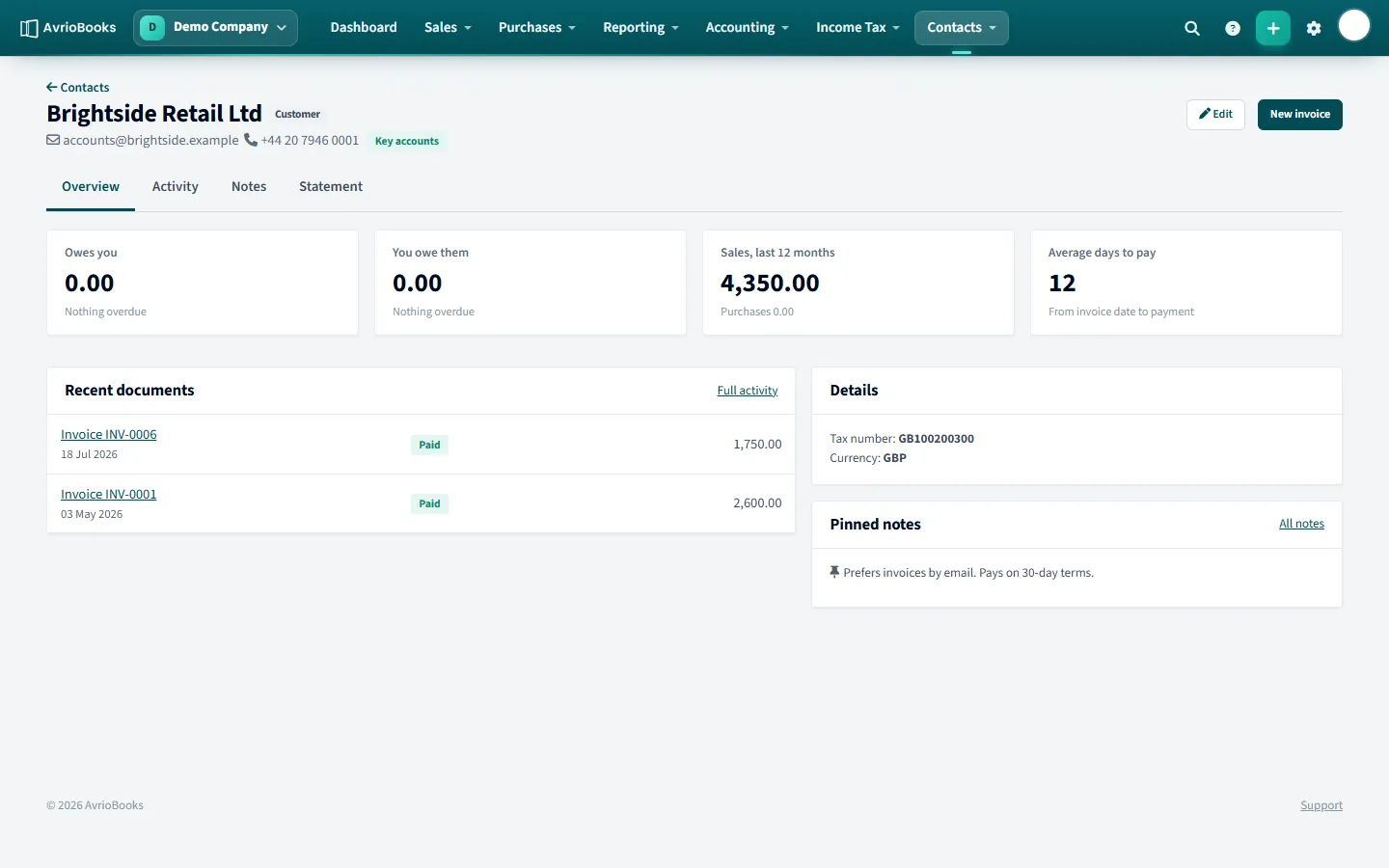
Select Contacts > All contacts and select a name. The overview shows what they owe you, what you owe them, sales in the last 12 months and their average days to pay, plus recent documents and tax or registration numbers.
Notes
The Notes tab lets you record conversations or reminders. Pin to the overview to keep important notes in view on the profile.
Send a statement
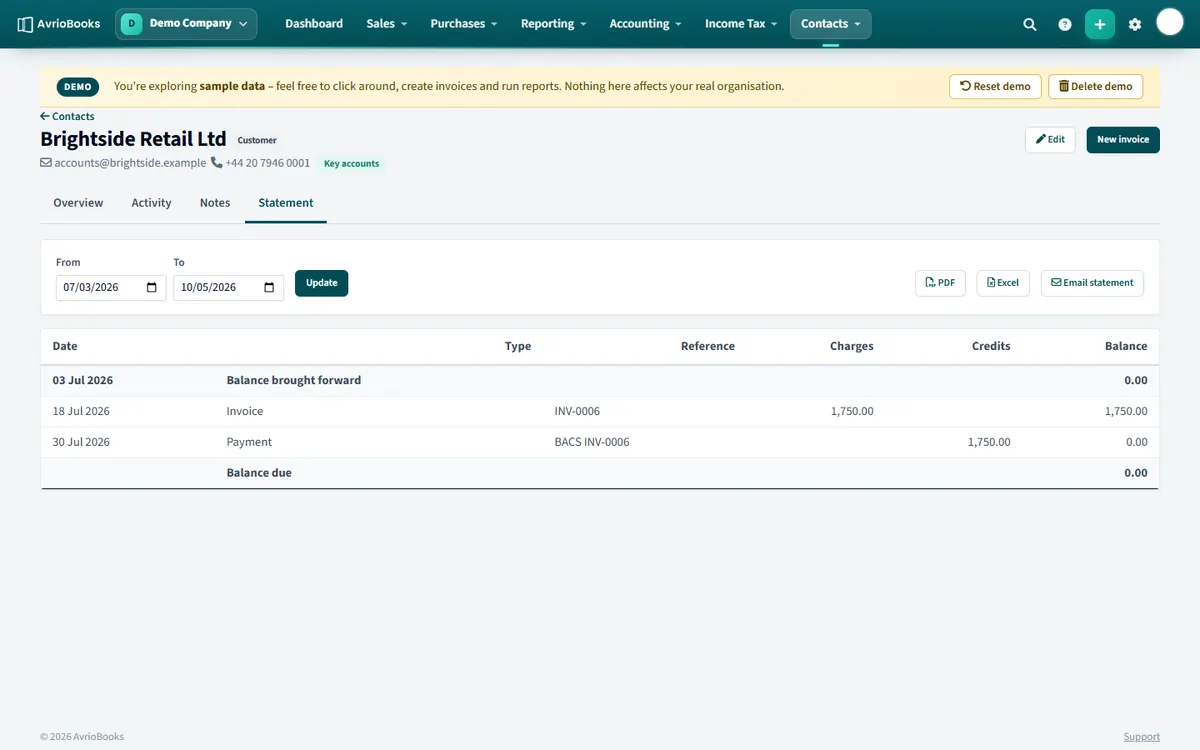
- Open the contact and go to the Statement tab.
- Choose the period.
- Select Email statement to send it, or download it as a file.
Groups
Use Contacts > Contact groups to create groups such as “Key accounts”. Select several contacts in the list and choose Add to group. Filter the contact list by group when you need to.
Make a contact inactive
Use the contact’s status toggle in the list to make it inactive. History stays intact. You can switch it back on at any time.
Make the most of the profile
- Average days to pay tells you how long this customer really takes, which is far more useful than their stated terms. The cash flow forecast also has an option to use customers’ usual payment delay.
- Sales in the last 12 months shows who your important customers are.
- Recent documents links straight to their latest invoices and payments.
Notes that help your team
Record agreements, contact names and payment promises as notes, and pin the ones everyone should see. Notes keep the context with the contact rather than in someone’s inbox.
Set defaults once
On each contact you can store a tax number, a registration number, a default currency and default accounts and tax rates for sales and purchases. These fill in automatically on new documents for that contact, saving time and avoiding mistakes.
Using groups
Groups are labels, not separate lists. A contact can belong to more than one, and you can filter any contact list by group. Typical groups are Key accounts, Retail, Overseas suppliers or Slow payers.