
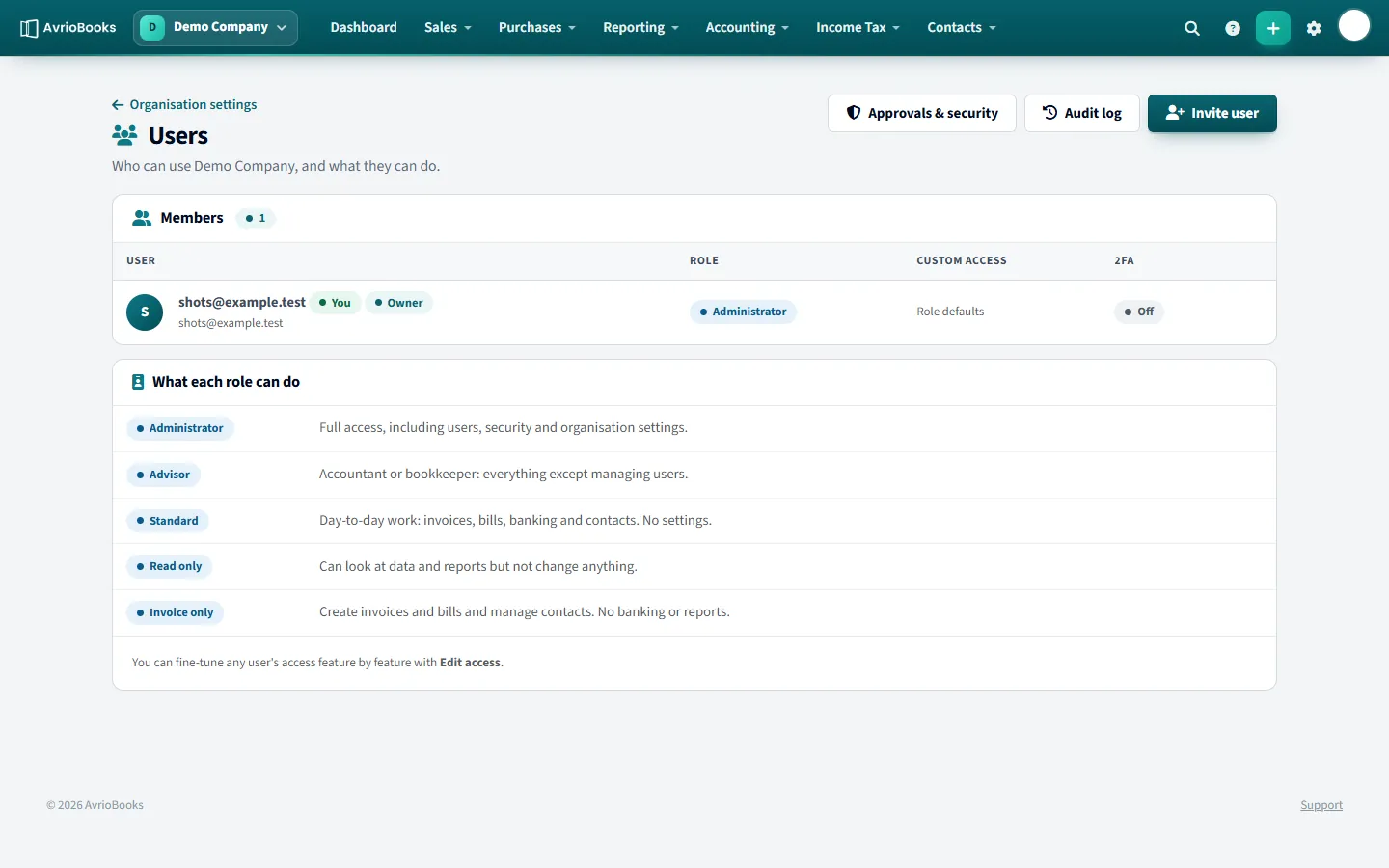
Remove a member
- Open your profile menu and choose Users & roles.
- Find the person and use the remove option, then confirm.
They lose access to the business immediately. Records they created stay in your books.
Resend or delete an invitation
Pending invitations are listed on the same page. Resend sends the email again; Delete cancels it. Deleting an unused invitation also frees up a place under your plan’s user limit.
What you cannot do
- You cannot remove the owner of the business.
- You cannot remove yourself.
- Only people with permission to manage users can remove members or resend invitations.
To limit what someone can do without removing them, change their role instead. See Invite users and set roles.
When someone leaves your team
- Remove them from Users & roles on the day they leave.
- Check the audit log for their recent activity if you need to review it.
- Reassign any work they were responsible for, such as documents awaiting their approval.
- If they held approval rights, make sure someone else does.
Temporary access
For a short engagement, such as an auditor visiting for a week, invite them as Read only and remove them afterwards. That avoids sharing credentials and leaves a clear record.
Freeing up a seat
A removed member and a deleted invitation both free a place under your plan’s user limit. See Plan limits and locked features.
If the person is the owner
The owner of a business cannot be removed, and you cannot remove yourself.