
Attach a file
- Open an invoice or bill and select More > Attachments (on a sales invoice the option is Preview, which also shows the invoice PDF).
- Click to choose a file. PDF, PNG and JPG files can be previewed on screen; other types can be downloaded.
- To swap the file, use Replace. To remove it, use the delete option.
See the history
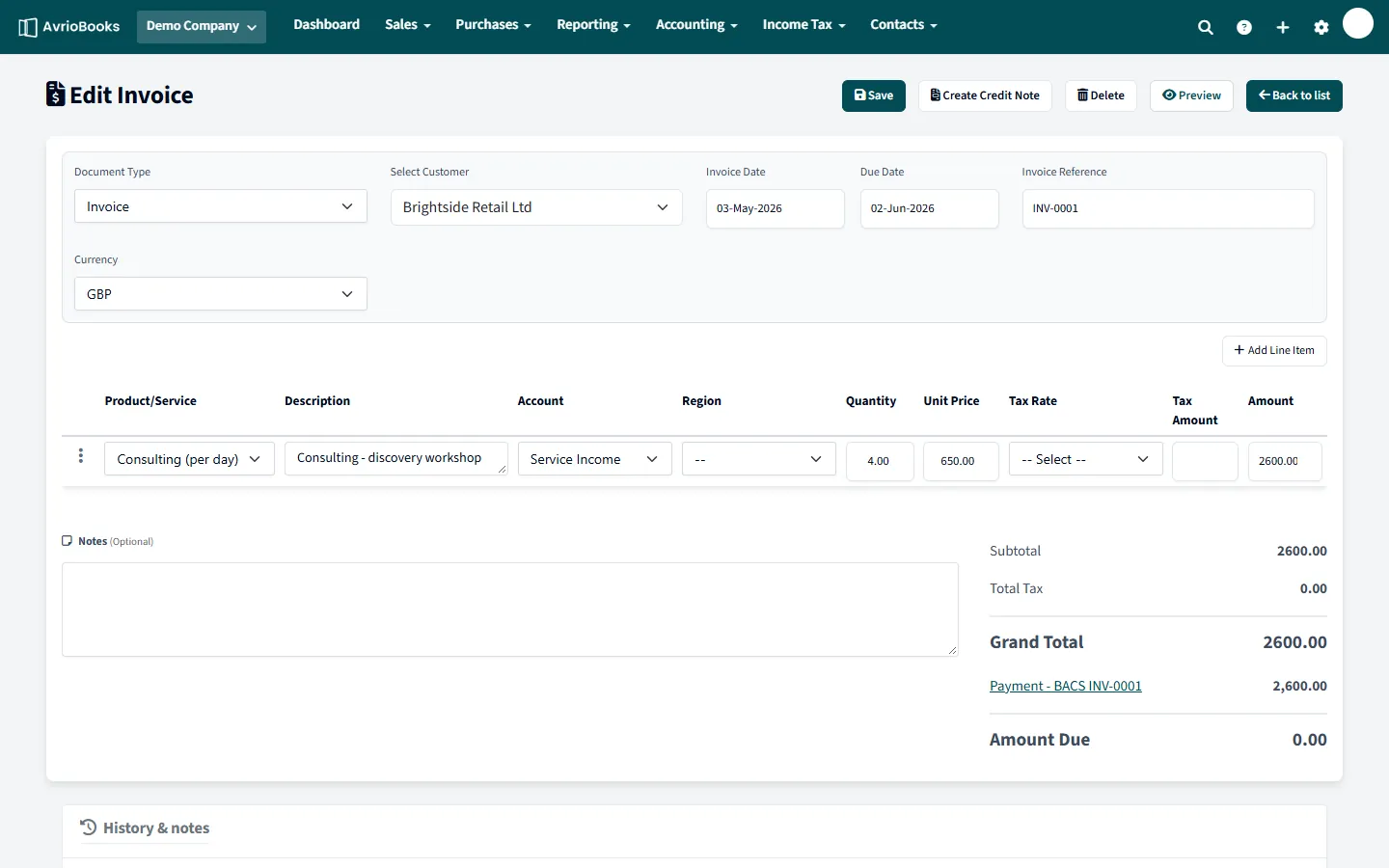
At the bottom of a document, the History & notes panel lists what was created, changed, emailed or approved, who did it and when. Use it to answer “who changed this?” quickly.
On the Premium plan you can also review changes across the whole business in the audit log.
What to attach
Attach the supplier’s invoice or receipt to every bill. PDFs, PNG and JPG files can be previewed on screen without downloading. Keeping the original with the record makes audits, tax queries and questions from your accountant quick to answer.
Spot missing receipts
The dashboard’s Expenses to review panel flags recent bills with no attachment, so nothing is left without evidence. See Account watchlist and expenses to review.
What the history panel records
The History & notes panel lists, with the person and the time, events such as the document being created, changed, emailed to a customer, approved or sent back, and payments recorded against it. It is the quickest way to answer “did we send this invoice, and when?”.
Good to know
- Use Replace if you attached the wrong file.
- Attachments belong to one document. Attach the file to each record that needs it.
- For a view across the whole business, see the audit log on the Premium plan.