
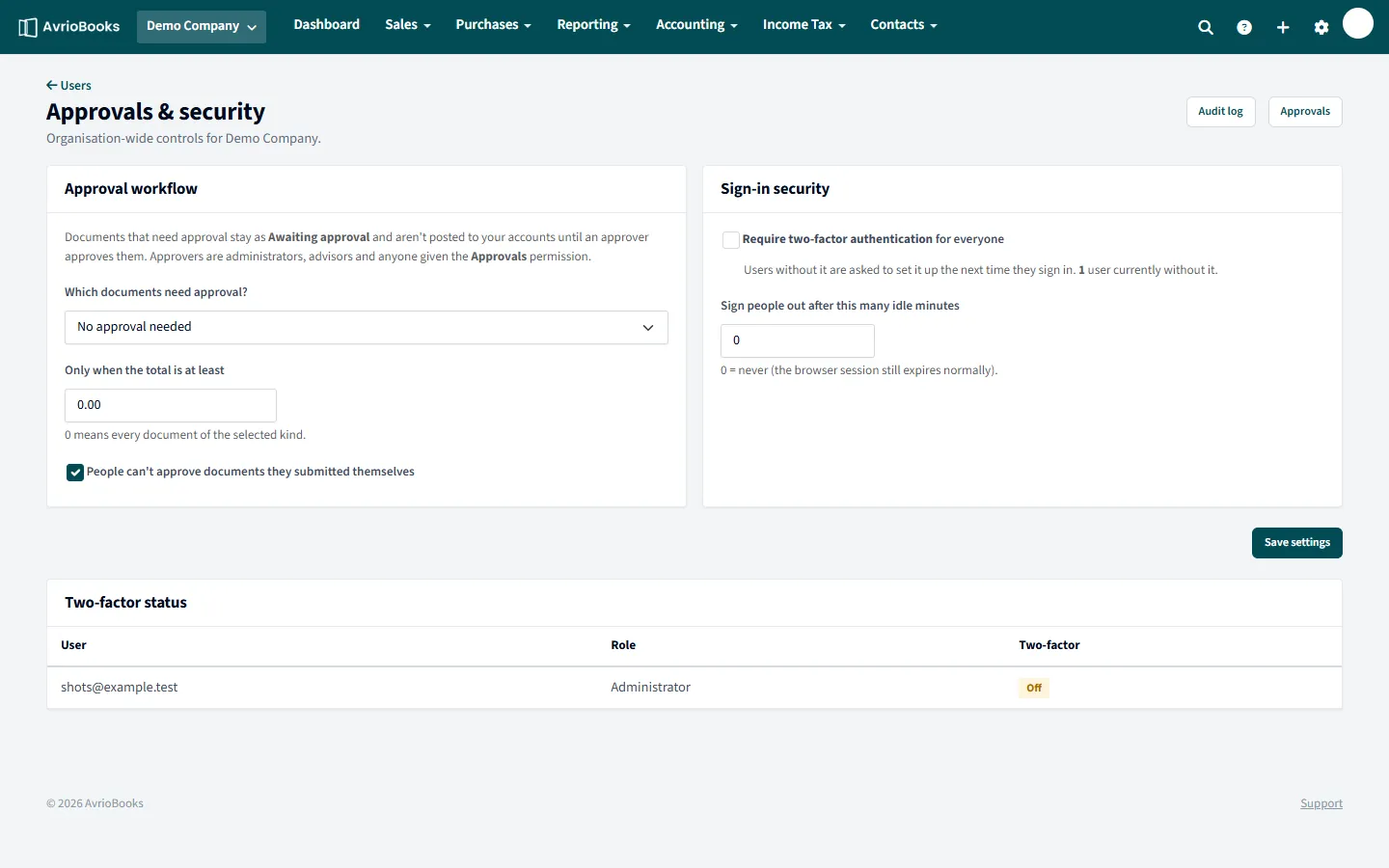
Turn approvals on
- Open your profile menu and choose Users & roles, then select Approvals & security.
- Under Approval workflow, choose Which documents need approval?: no approval, bills only, invoices only, or invoices and bills.
- Optionally set Only when the total is at least to require approval only for larger documents. Zero means every document of the selected kind.
- Tick People can’t approve documents they submitted themselves if you want a strict second check.
- Select Save settings.
How it works day to day
- A person without approval rights sees Submit for approval instead of Save on an invoice or bill.
- The document shows Awaiting approval and who submitted it.
- Approvers open Sales > Awaiting approval (or the same item under Purchases), review the document and select Approve, or Send back with a note explaining what to fix.
- Approved documents become Awaiting payment and are posted to your accounts. Sent-back documents return to Draft with the note attached.
Who can approve
Administrators, advisors and anyone given the Approvals permission. See Invite users and set roles.
Before you start
- Plan: approval workflows are on the Premium plan, and are included during every 30-day trial.
- Who sets it up: people with access to organisation settings, normally administrators.
- Who approves: administrators, advisors and anyone given the Approvals permission. Give approval rights to people who are not the ones raising the documents.
A worked example
Suppose you require approval for bills of 1,000 or more. A team member enters a bill for 2,400 and selects Submit for approval. The bill shows Awaiting approval and is not posted to your accounts, so it does not yet appear in your payables or reports. An approver opens it from Purchases > Awaiting approval, checks the attached supplier document and selects Approve. The bill becomes Awaiting payment and is posted. A bill for 400 in the same week would not need approval and is posted as soon as it is saved.
If an approver disagrees
Send back returns the document to Draft with a note saying what to fix. The submitter sees the note on the document, corrects it and submits it again.
Tips
- Start with bills only if invoices are low risk; you can switch to invoices and bills later.
- Tick People can’t approve documents they submitted themselves for a proper separation of duties.
- Every submission, approval and send-back is recorded in the audit log.
Frequently asked questions
Can I require approval only for larger documents?
Yes. Set Only when the total is at least to a value. Zero means every document of the selected kind needs approval.
Which plan includes approval workflows?
The Premium plan. Every business has everything in Premium during its 30-day free trial.
Who can approve documents?
Administrators, advisors and anyone given the Approvals permission.