
If Making Tax Digital for Income Tax applies to you, you will send HMRC an update every quarter. This walkthrough shows how it works in AvrioBooks. It needs the Standard plan or above and depends on HMRC approval, so contact us to confirm availability before you rely on it for a live submission. For the background, read our plain-English guide.
Before you start
- Your National Insurance number and your HMRC online account details.
- Your business on the Standard plan or above.
- Your records up to date: invoices, bills and a reconciled bank statement for the quarter.
Step 1: connect to HMRC
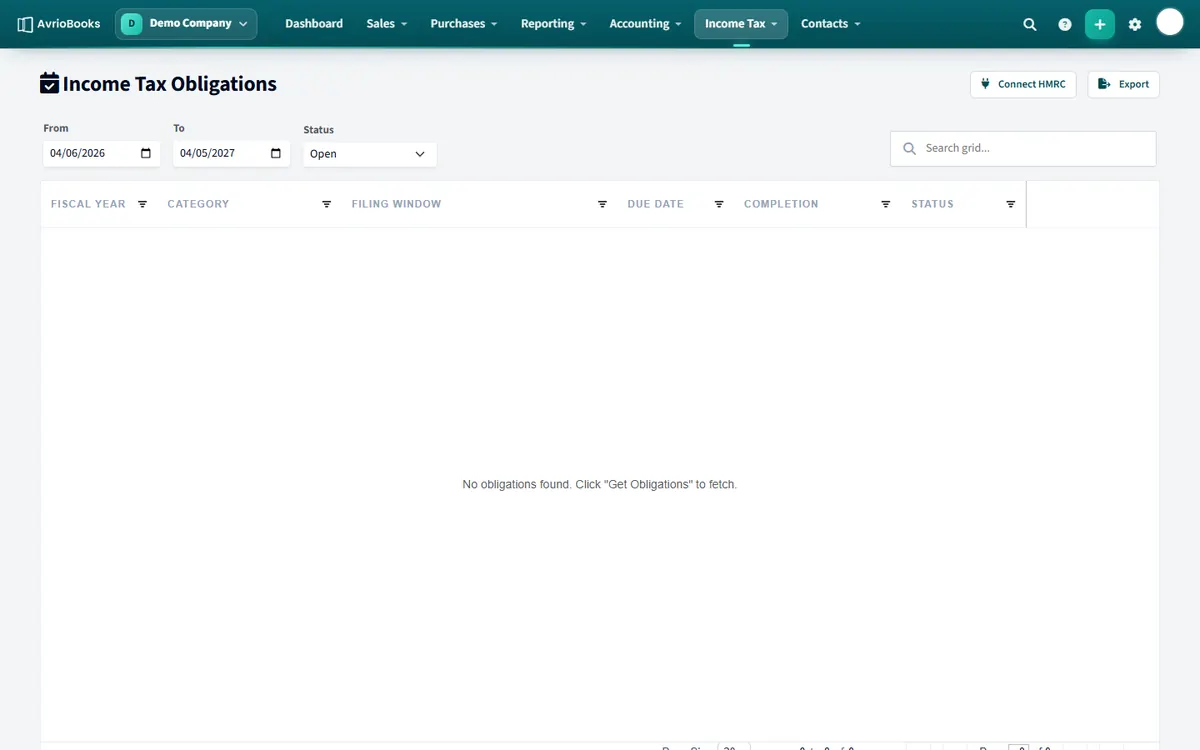
In AvrioBooks, open Income Tax > Obligations and select Connect to HMRC. Enter your National Insurance number, sign in to HMRC and authorise AvrioBooks. The dashboard then shows HMRC Authorised and Linked & Active. You only do this once.
Step 2: fetch your obligations
Select Get Obligations to fetch the quarterly periods HMRC expects from you. Open one to see its detail and its due date. The default quarters run from the 6th of a month to the 5th three months later, and each update is due by the 7th of the following month.
Step 3: prepare your figures
Run a profit and loss for the quarter and export it to a spreadsheet, or prepare a CSV or Excel file with your income and allowable expenses for the period. Check the totals against your reports and make sure your bank is reconciled. See our guide to allowable expenses if you are unsure about a cost.
Step 4: upload and map
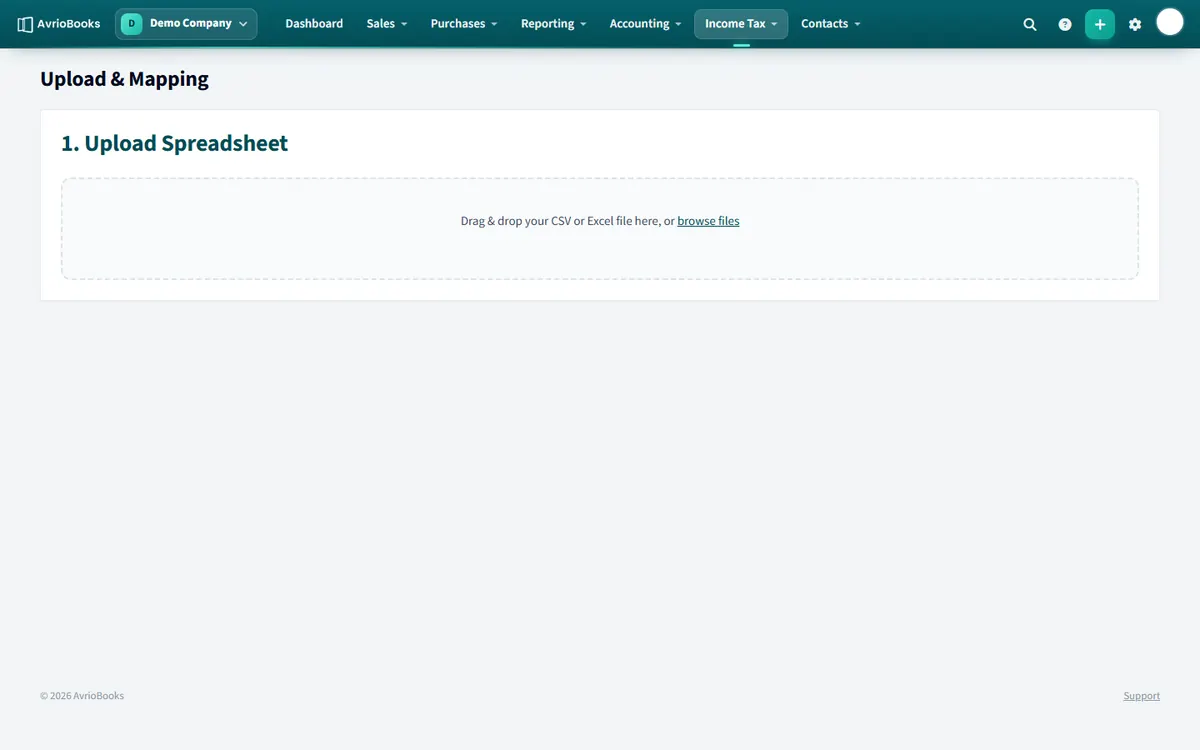
Open Income Tax > Upload and mapping. Drag in your CSV or Excel file, then map the columns to HMRC’s categories, for example income and each type of allowable expense.
Step 5: review and submit
Check the totals carefully. When you are happy, select Submit to HMRC. Take your time, and ask your accountant if you are unsure how to treat an item.
Step 6: check the history
Everything you submit is listed under History, with the status of each submission. Confirm yours was accepted and keep a copy.
A routine that works
- Reconcile your bank each month, not once a quarter.
- On the 1st of the month after the quarter ends, run your profit and loss.
- Prepare and upload the figures by the 3rd or 4th.
- Submit a few days before the 7th.
See the full help article, Making Tax Digital for Income Tax, and all the deadlines.
Frequently asked questions
Which AvrioBooks plan includes Making Tax Digital?
The Standard plan and above, subject to HMRC approval.
What do I need to connect to HMRC?
Your National Insurance number and your HMRC online account sign-in, to authorise AvrioBooks.
How do I send my income and expenses?
Upload a CSV or Excel file under Income Tax, map its columns to HMRC categories, review the totals and select Submit to HMRC.
Where can I see what I have submitted?
Under Income Tax > History, which lists every submission with its status.
Keep reading

VAT return due 7 November: a checklist for the quarter to 30 September
VAT returns are due one month and seven days after the end of the period. For a quarter ending 30 September, that is Saturday 7 November.
2 November 2026 · 6 min read
How to choose Making Tax Digital software: a 10-point checklist
The software you pick has to keep your records and talk to HMRC. Here are ten questions that help you choose well.
1 November 2026 · 7 min read
Christmas gifts and parties: what is tax-deductible for a small business
Christmas generosity has tax rules. Here is what you can usually claim, what you cannot and how to keep the records.
1 November 2026 · 6 min read